Getting Started
Language and appearance
Read Nerve in your own language and choose light or dark — and see why times and money keep following the property instead of you.
Last updated
Who this is for: everybody with a Nerve sign-in. No permission is required — these two settings are yours. Where: the account menu at the foot of the sidebar
Two settings sit next to each other in the account menu, and they look like the same kind of thing. They are close — but they part company in one way worth knowing.
Your language follows you. Your appearance follows you too, unless a screen overrules it. Change the language and it is your language at every property you work in, on every device you sign in from. Appearance has an account-level default that travels the same way — but the toggle in this menu is deliberately narrower: it changes this browser only, so the night desk can run dark without touching the same person's laptop at home.
And a third thing follows neither of you: times and money belong to the property. Nothing on this page changes them.
Where the controls are#
Select your name and email at the foot of the sidebar. The menu that opens holds My profile, Account security, a Language row, an Appearance section, and Sign out.
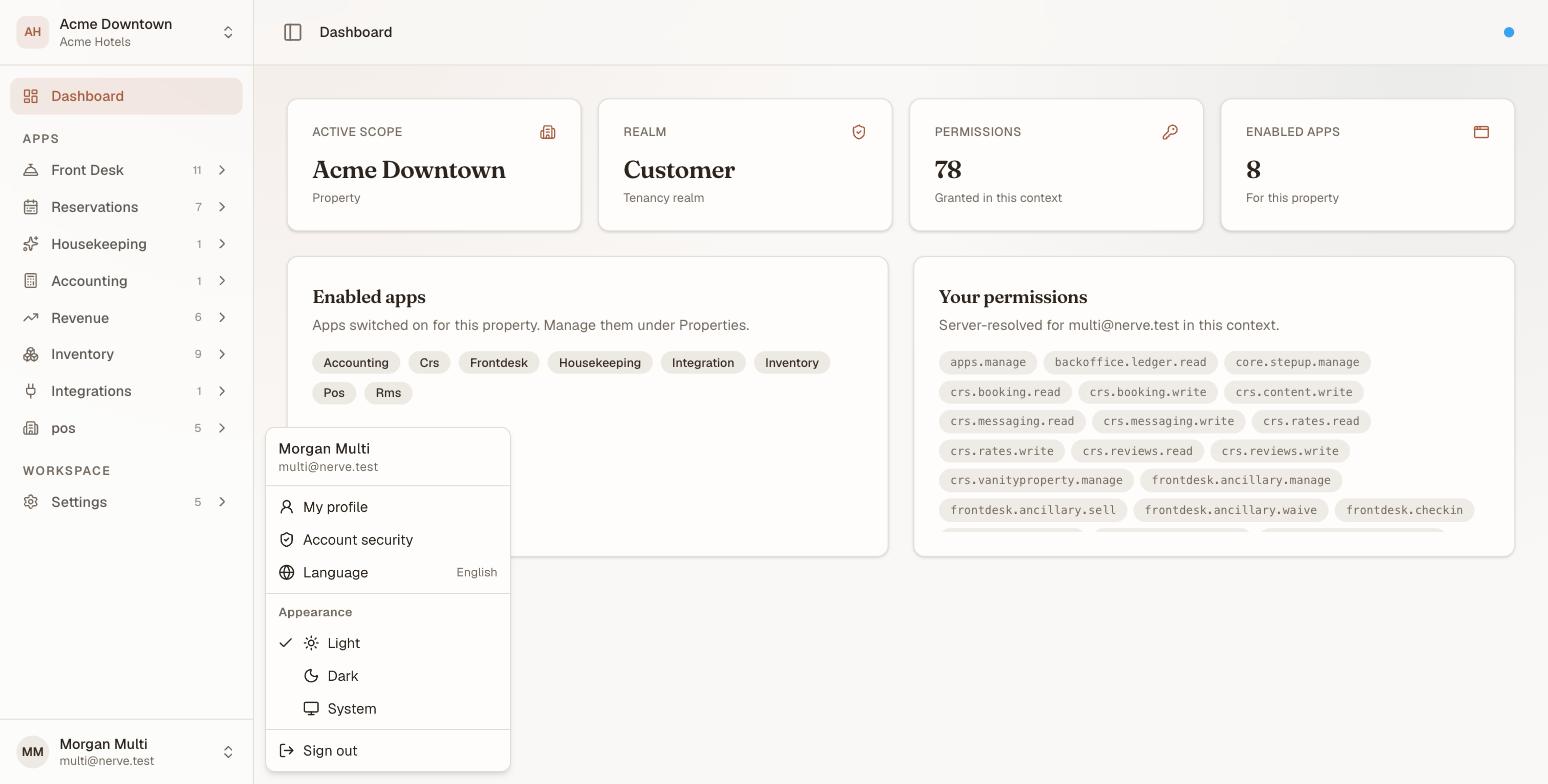
The Language row shows the language you are reading right now, written in itself — so it is legible even when the menu around it is not.
Appearance#
Three modes:
| Mode | What it does |
|---|---|
| Light | The light palette, whatever your device is set to |
| Dark | The dark palette, whatever your device is set to |
| System | Follows your operating system, and keeps following it |
System is a live setting rather than a one-time reading. If your machine switches to dark at sunset, Nerve switches with it — no reload, no sign-out. Choosing Light or Dark outranks the operating system until you put it back on System.
The change applies the moment you select it: the menu closes and the whole app has already turned over, including the scrollbars and form controls, which take their colours from the theme rather than staying stubbornly light.
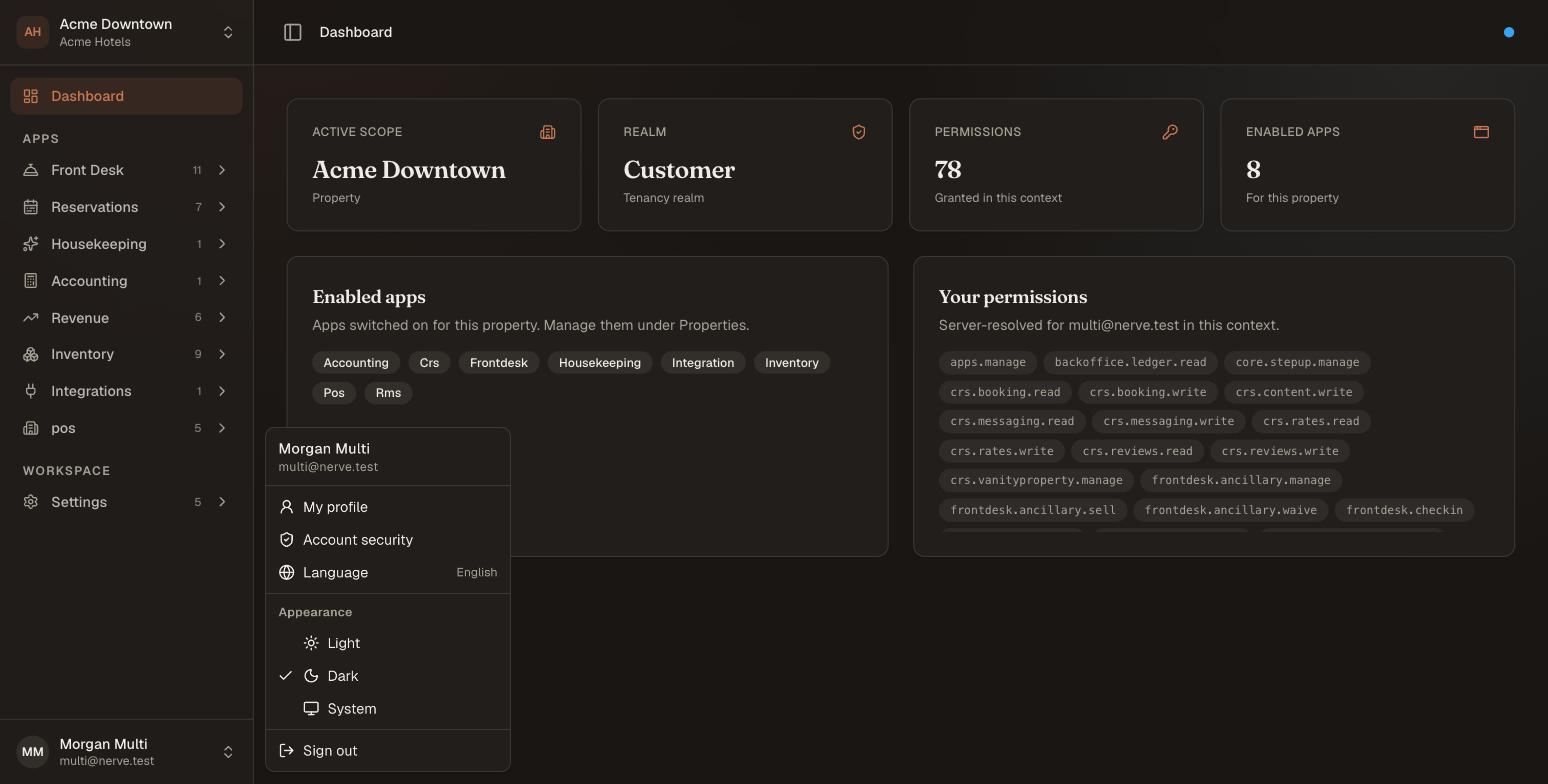
The same page, the same menu, one selection later.
Your choice here is remembered on this browser, and it is read before the page paints — so reopening Nerve in dark mode does not flash white first.
Which setting wins#
There are two places to choose an appearance, and they answer different questions. Your account default answers "what should a screen I have never used look like?" — set it on your profile, and it travels with you. The menu toggle on this page answers "…and what should this one look like?"
Nerve resolves them in that order:
| Order | Source | Set from |
|---|---|---|
| 1 | This browser | The Appearance section in this menu |
| 2 | Your account | The Appearance section on your profile |
| 3 | Your operating system | Your device's own light/dark setting |
So a browser with an opinion keeps it, whatever your account says — which is why this toggle always visibly works. A browser without one follows your account. And an account that has never chosen follows the operating system.
Note
Because the choice made here belongs to the browser rather than to you, it stays behind on a shared terminal after you sign out — the front-desk machine keeps the mode the desk chose, not the mode the last person on shift preferred. That is deliberate.
Setting the appearance on your profile also clears this browser's override, so the choice you just made is the one you see — and a later change from another device is not shadowed here forever.
Language#
Select Language to open the full list. Nerve currently reads in three:
- English
- Bahasa Indonesia
- العربية
Each is written in its own language, so you can find yours without being able to read the menu around it.
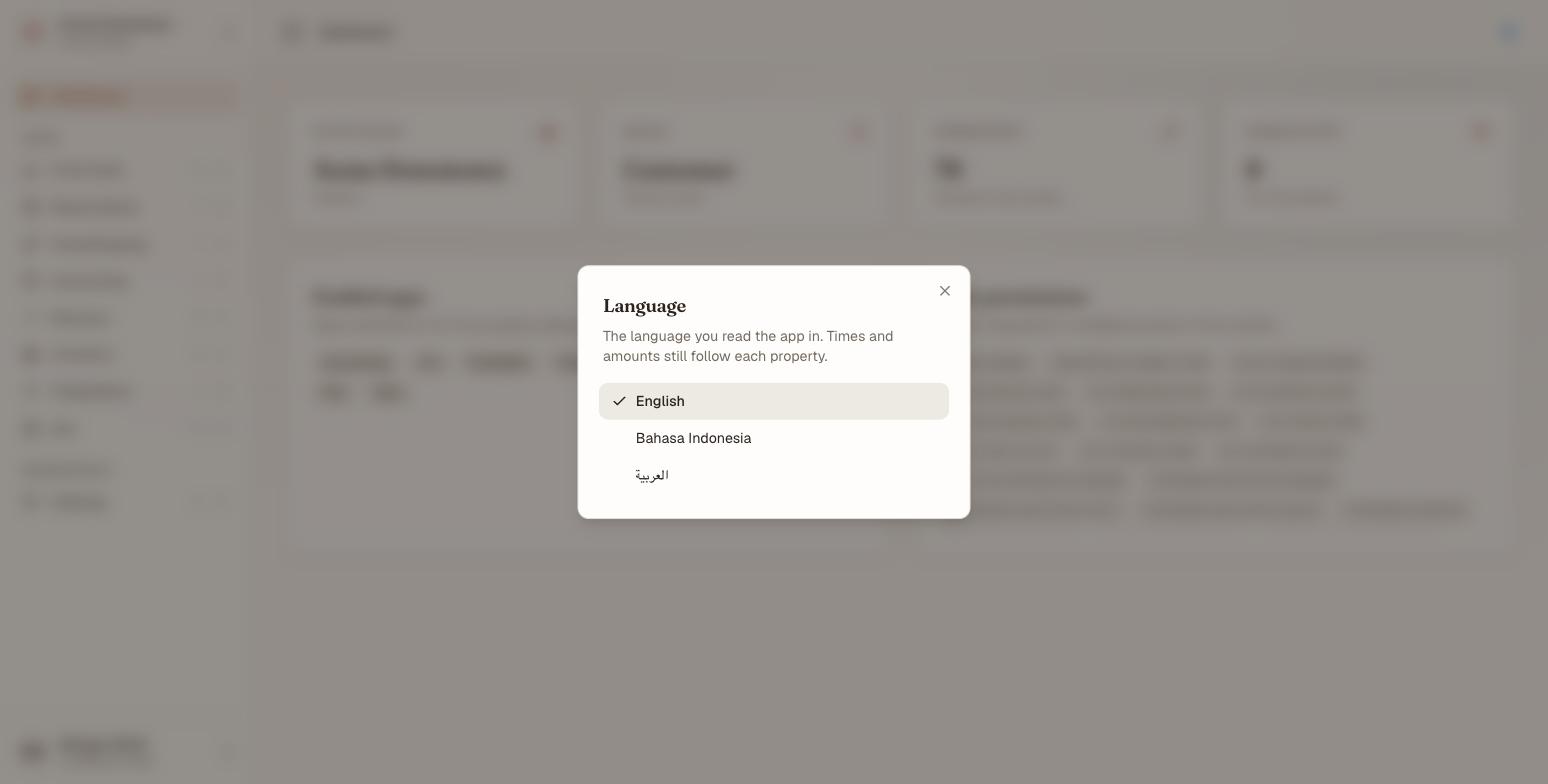
Choosing a language closes the dialog and switches the app immediately.
The switch is instant, and it reaches further than the screen you are on: the menu labels, the error messages and the other text Nerve composes on the server come back in your language too, so the sidebar is not left in English around a translated page.
Because language is stored on your account, it is waiting for you the next time you sign in — on a different machine, at a different property, in a different organisation. There is no per-browser version of this one: unlike appearance, a language has no reason to differ from screen to screen. And when you sign out of a shared terminal, your language leaves with you: the next person to sign in gets their own back.
Note
Where a translation is not finished yet, that text falls back to English rather than showing you a blank or a raw label. So a language may be partly English at first, and fills in as translations land — nothing goes missing in the meantime.
Arabic reads right to left#
Choosing العربية does not simply swap the words. The layout mirrors: the sidebar moves to the right-hand edge, menus open the other way, and every row reads from the right.
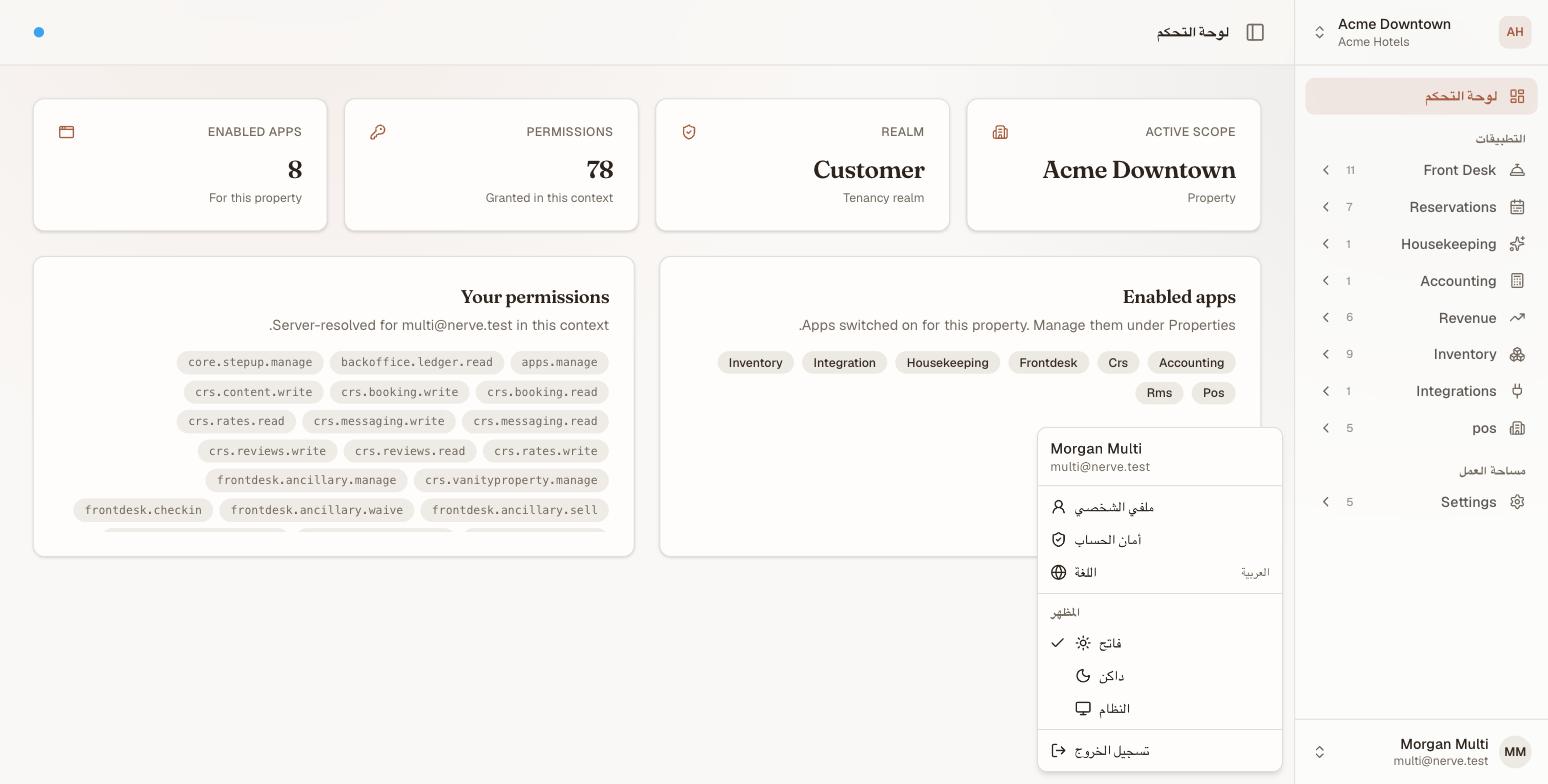
Right-to-left is a property of the language, not a separate switch — there is nothing extra to turn on.
What your language does not change#
This is the part worth reading twice, because it is what most people expect to move and it does not.
| What | Follows | So |
|---|---|---|
| The words | you | Read Nerve in Arabic anywhere you work |
| The clock | the property | An arrival at a Jakarta hotel is shown in Jakarta time, to everyone |
| The money | the property | Its folios stay in its own currency — there is no personal display currency |
| Date and number formatting | the property | 1.234,56 or 1,234.56, the property's way, whoever is looking |
So a colleague reading Nerve in Arabic at an Indonesian hotel sees Arabic words in a mirrored layout — and Jakarta times, rupiah, and Indonesian number formatting.
The reason is operational rather than technical: a property's day is the property's day. If the clock followed the reader, two people discussing the same arrival would be looking at two different times, and a night audit would mean something different depending on who ran it.
The property's timezone, currency and formatting locale are set on the property itself — see properties and hotel settings. What the property calls things is a third, separate control: white-label lets a house rename the hospitality words in every language at once.
If something does not stick#
- A new machine did not open in the theme I use. The toggle in this menu is per-browser, so it does not travel. Set the appearance on your profile instead — that one is stored on your account, and it is what a screen you have never signed in on will use.
- I set it on my profile, but this browser did not change. It should: choosing there clears this browser's override. If one machine is still out of step, set it once from that machine's menu, or set it again on your profile from there.
- The theme resets in the same browser. Private/incognito windows, and browsers set to clear site data on close, discard the stored choice. The mode still holds for the window you are in.
- The language went back to what it was. The change is saved to your account; if that save could not reach the server, the app keeps the new language for this browser and your account keeps the old one until you change it again. Switch it once more on a working connection.
What's next#
- Your profile and account — the page these two settings live on, plus your photo, sign-in email and sign-in methods
- Sign in and find your way around — the sidebar, the account menu, and why your menu differs from a colleague's
- Properties and hotel settings — where a property's timezone, currency and formatting live
- White-label — renaming hospitality terms for your house