Akuntansi
Night audit
Closing the property's day and rolling the business date — as a guided Pre-audit / Run / Post-audit checklist, with the report catalog and step sequence behind it.
Terakhir diperbarui
Who this is for: Accountant and Owner — requires
backoffice.nightaudit.run; changing the Program or Report Layout tabs requiresbackoffice.nightaudit.config. Where: Accounting → Night Audit
The night audit closes the property's business day. It takes the day's figures from the ledger, records them as a run, and rolls the business date forward by one.
It is per property, not per organisation: the screen works on the property you have selected, and each property closes on its own schedule.
Six tabs. Checklist is the guided sequence an auditor works and is what this page mostly covers; Reports and Competitor rates are the post-audit surfaces; History is what has already been closed; Program and Report Layout are the configuration behind all of it.
Penting
A day can only ever be closed once. No sequence of clicks, retries or interrupted requests can post a day's figures twice or advance the date twice past it. This is the fact to have before you read anything else on this page — and the one thing it does not mean is on the button, so read what a second press does before you make a habit of pressing twice.
What the business date is#
The business date is the day the property is operationally in, which is not the same as the day the clock is in. A charge posted at 02:00 belongs to the night that is still being worked, and the business date is what says so.
It decides two things:
- Every folio-sourced ledger entry is dated with it — so a day's postings group under the day the audit later closes, rather than scattering across midnight.
- The arrivals and departures lists key off it — see check a guest in. Rolling the date is what turns tomorrow's arrivals into today's.
The card at the top of the Checklist tab shows the current one. That is the day a run will close.
The guided checklist#
The audit used to be one button. An auditor either trusted a black box or did the verification by hand somewhere else — usually on paper, usually differently each night.
The Checklist tab renders the program as three phases, with each review step's findings inline so you never leave the page to check something:
| Phase | Steps |
|---|---|
| Pre-audit | Check departure guests still in house · Review in-house guests · Check open master bills · Check occupied outlet tables · Check daily sales by outlet · Review the booking journal |
| Run | Compute the daily revenue report · Record the run · Roll the business date |
| Post-audit | Capture competitor rates · Check open folio balances |
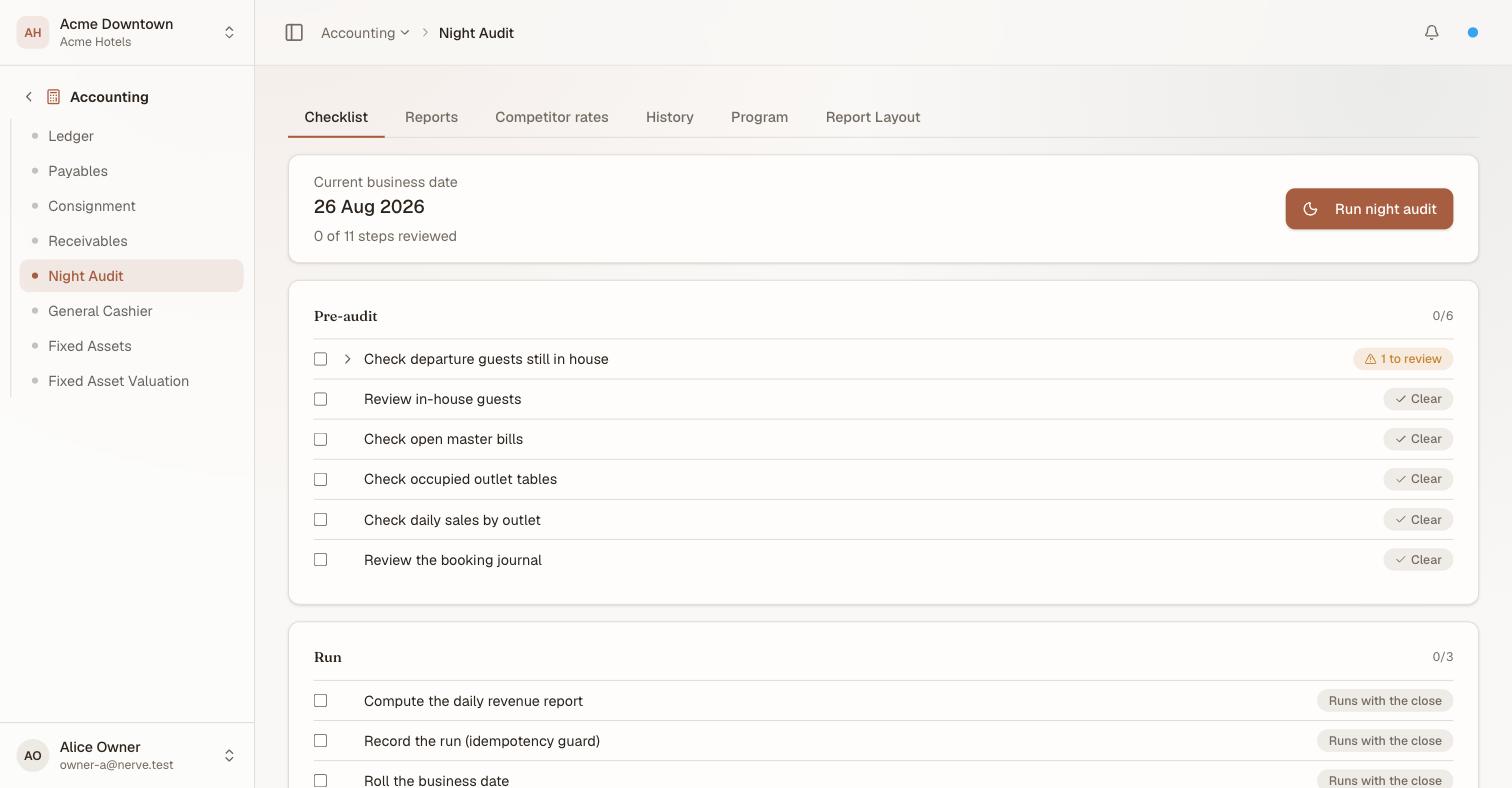
Each review step resolves its own finding before you get there. 1 to review on the departures check is a guest still in house who was due out — the thing you would otherwise discover after closing the day. The three closing steps are badged Runs with the close because the audit performs them itself; ticking one records that a person reviewed it, which is a different fact.
Each review step shows what it found — "1 to review", or Clear — and carries a tick. Progress reads "0 of 11 steps reviewed".
Three things about this are worth being precise about, because they are easy to assume wrongly:
- The checklist does not gate the run. It warns; it does not stop. A hotel that forgot one check-out must still be able to close its day, and a control that blocks the close at 3am is a control people learn to route around.
- A tick means a human looked. It does not mean the step executed — the Run steps do that themselves. A tick is a record that somebody reviewed the finding, which is the entire point of a checklist.
- Ticks survive you walking away. They are stored per run, against the business date being closed — so a half-worked audit is still half-worked when you come back, and a stuck date keeps showing its own progress even after the date has rolled past it.
A step the program has switched off reads Off; one whose data source is not wired reads Not wired rather than silently reporting nothing.
Run the night audit#
- On the Checklist tab, check the Current business date is the day you mean to close.
- Work the Pre-audit steps.
- Select Run night audit.
The date on the card advances by one, and a row appears at the top of History for the day just closed, carrying its Room, Tax, Revenue and Payments totals.
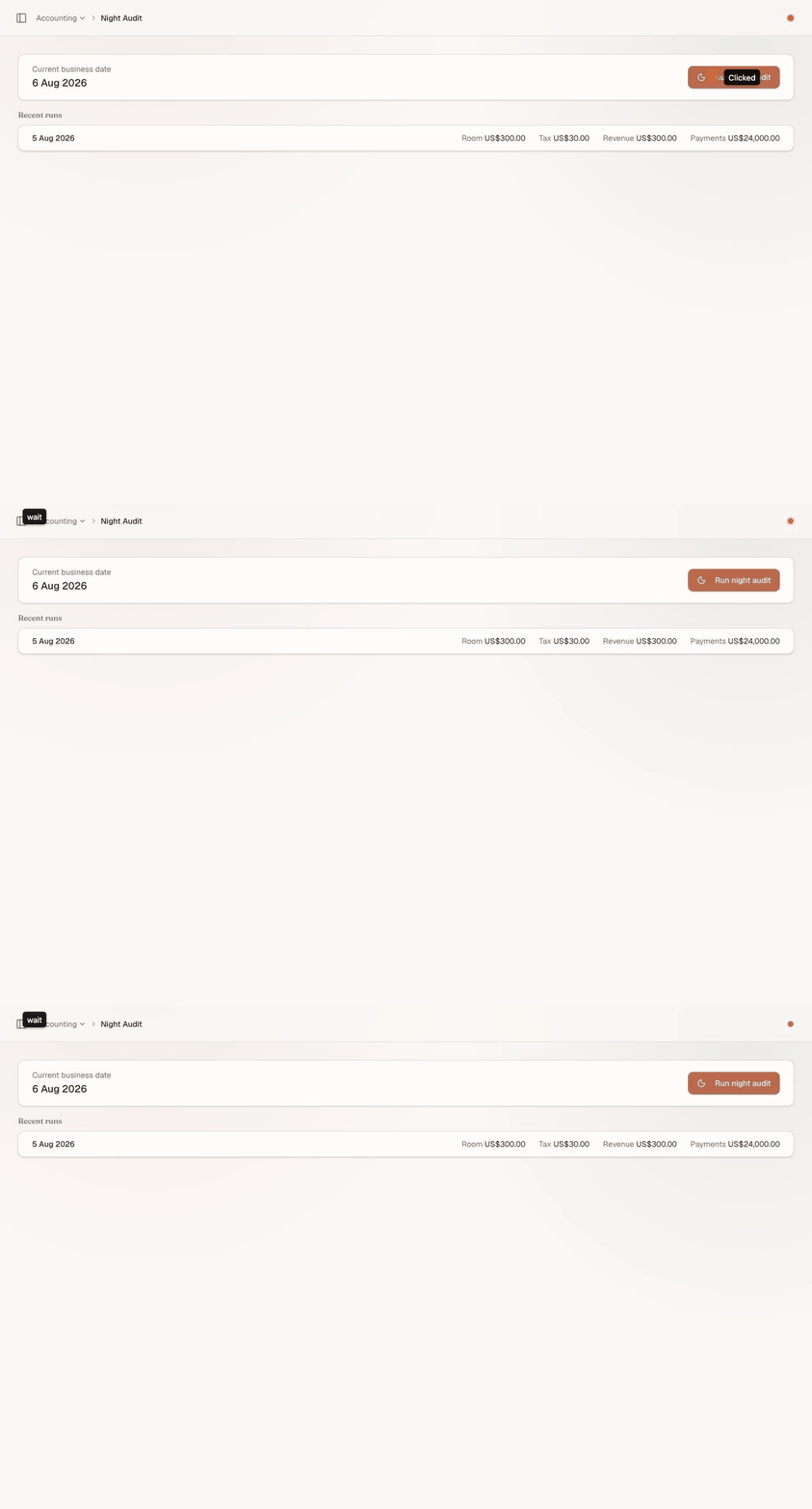
One press, two effects: the day is recorded with its figures, and the business date rolls past it. There is no confirmation step, and the day just closed is the one that was on the card.
There is no confirmation step, which is why step 1 is a step.
What a second press does#
The button always closes whatever the card currently says. So once a run has succeeded and the card has moved on, pressing it again does not re-close the day you just closed — it closes the next one.

After the close: the date on the card is the day now being worked, and the row beneath it is the day that was shut. Run night audit would now close 6 August, not re-close 5 August.
That is not a bug and it is not dangerous, but it is not "nothing" either: you would be closing a day the property has not finished working. Read the card, then press.
What the guarantee protects is the other kind of repetition — the same day being closed twice, which is what a retried request, a double-submitted form or a reconnecting client would otherwise cause. Two mechanisms, independently:
- Recording the run. One run row per property per date, enforced at the database. A second attempt on the same date writes nothing and reads the existing row back — it is marked re-run in the list when that happens.
- Rolling the date. The advance only fires when the stored date still equals the day being closed. Once it has moved, the same instruction matches nothing.
There is also nothing to duplicate even in principle, because the audit posts no journal entries. Room and tax charges were already posted by the folio when they were charged; the audit reads the day out of the journal and stores the totals. A close is a summary, not a posting.
If a run is interrupted#
A power cut, a dropped connection, a browser closed mid-request — the anxious cases.
The whole run is one database transaction. It either completes or leaves nothing behind. There is no state in which the day is half-closed: you will not find a run recorded against a date that did not advance, or a date that advanced with no run behind it.
So the recovery is always the same, and it starts by looking rather than pressing:
- Reload the screen.
- Read Current business date.
- It has advanced — the run completed. The row is in History. Nothing to do, and pressing the button now would close another day.
- It is unchanged — the run did not happen at all. Select Run night audit.
Catatan
A day that never gets closed is not corrupt — it is just long. The property keeps working in it, ledger entries keep being dated with it, and arrivals and departures keep keying off it, which is usually how somebody notices before the accountant does.
The Reports tab#
Pick a report and a business date. Every report is the same shape — a list of lines plus a Total count and amount — because every one of them is read the same way: an auditor scanning a list before signing off.
| Report | What it lists |
|---|---|
| Daily revenue report | The day's revenue by section, per your Report Layout |
| Turnover by department | Revenue and count per department |
| Room revenue breakdown | Room revenue per stay |
| Competitor report | The rates captured in post-audit |
| No-show report | Reservations that never arrived |
| Double occupancy statistic | How many rooms slept more than one |
| Breakfast list | Who is owed breakfast tomorrow |
| Walk-in guests | Stays that arrived without a booking |
| Complimentary guests | Comped stays |
| VIP guests | Stays tagged VIP |
The last four come from stay tags, which are not mutually exclusive — a comped VIP walk-in is one stay carrying three tags, and it appears on all three lists. Tagging a stay is a front-desk action (frontdesk.reservation.write), not a night-audit one.
The double-occupancy statistic reads the adults recorded on a stay. A stay with no adult count recorded cannot contribute to it, so if that report looks thin, that is where to look first.
The Competitor rates tab#
Rate shopping, captured during post-audit: a competitor, a room type and a rate, against a business date.
Nerve's own forecasting and recommendations work from your rates. This is where the market number lives, per property per business date per competitor per room type — so re-capturing a figure corrects it rather than adding a second one.
The Program tab#
The Program lists the steps a night-audit run performs, in order and by phase.
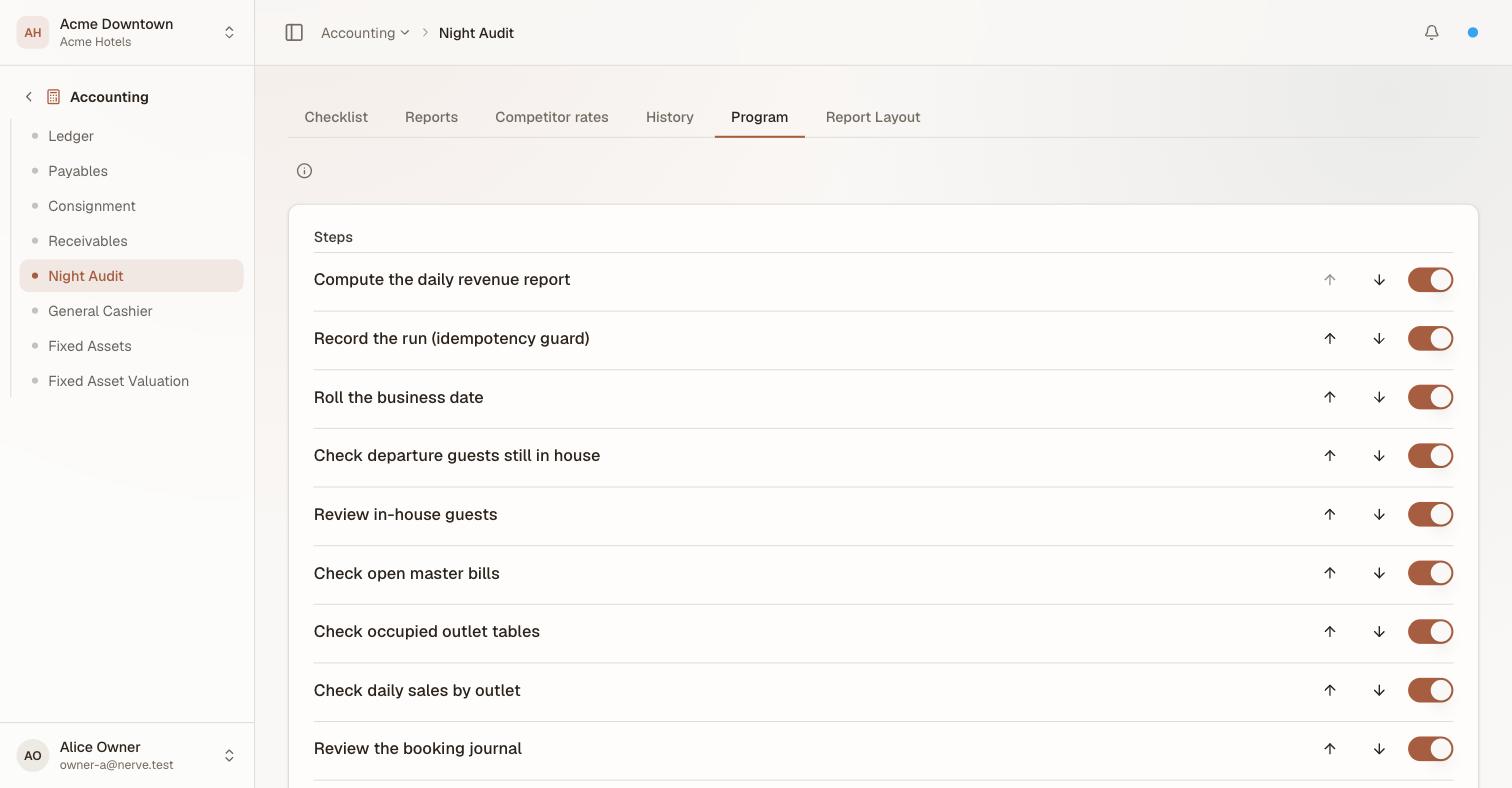
Reorder with the arrows, switch a step off with the toggle. You never have to add a step: the program is resolved over the step registry, so a check added to the product later appears here on its own, and one you switched off stays off.
Use the up/down arrows to reorder a step, and the switch to turn one off entirely — a property that doesn't compute a daily revenue report can disable that step without losing the rest of the sequence.
Record the run and Roll the business date are the two guarantees described above; disabling the recording step does not disable the idempotency guard itself, only whether this program stops to acknowledge it.
Report selection is where a report from the catalog above is named and pointed at an output — Not delivered, a Printer with a document class (which is what Printers → Routing resolves to an actual device, drr for the daily revenue report), or Email. Select Add report to wire in another one.
A report key that resolves to nothing fails the save, rather than printing an empty page at 3am.
The Report Layout tab#
The Report Layout tab is where the daily revenue report (DRR)'s own sections are defined — not the night-audit sequence, but what the report itself contains when it runs.
Each row is one section: a code (stable, used internally), a label (what prints), the account codes it pulls its figure from — comma-separated, so one section can total several accounts — and whether those are Credit-normal or Debit-normal, the same normal-balance concept the ledger uses to decide which side of an account's balance is the "positive" one. Show comparative (prior day) adds yesterday's figure beside today's.
Toggle a section inactive to leave it defined but excluded from the printed report, or use Add section / the trash icon to add or remove one outright.
This is what lets a property's daily revenue report mirror its own chart of accounts (see Chart of accounts) instead of a fixed set of line items nobody can rename.
What's next#
- Daily and period reports — reconciling a run's figures back to the journal
- The ledger — what the audit reads, and what dates it by the business date
- Chart of accounts — the accounts a Report Layout section pulls its figure from
- Printers — where a Program tab's report output actually resolves to a device
- Check a guest in — the list on the other side of the roll