Front Desk
Room categories, and the rooms behind them
What the house sells versus what it opens the door to — how to put a room number behind a category, lend one to a second category, or build a whole unit from several.
Terakhir diperbarui
Who this is for: Manager, Owner — requires
frontdesk.room.block. Where: Settings → Room Category
Room inventory is something a property configures, not something a desk works, so it lives in Settings. The old Front Desk → Rooms & Units address still works and takes you here.
Two different things are easy to confuse, and this screen is where they meet:
- A room category is what the house sells — Double Room, Deluxe, Villa. Rates, availability and channels are all quoted against it.
- A room is what the house opens the door to — 202, 305. A guest sleeps in one of these.
A category with no rooms behind it is a promise the house cannot keep, and this screen is where you make good on it.
Read the categories#
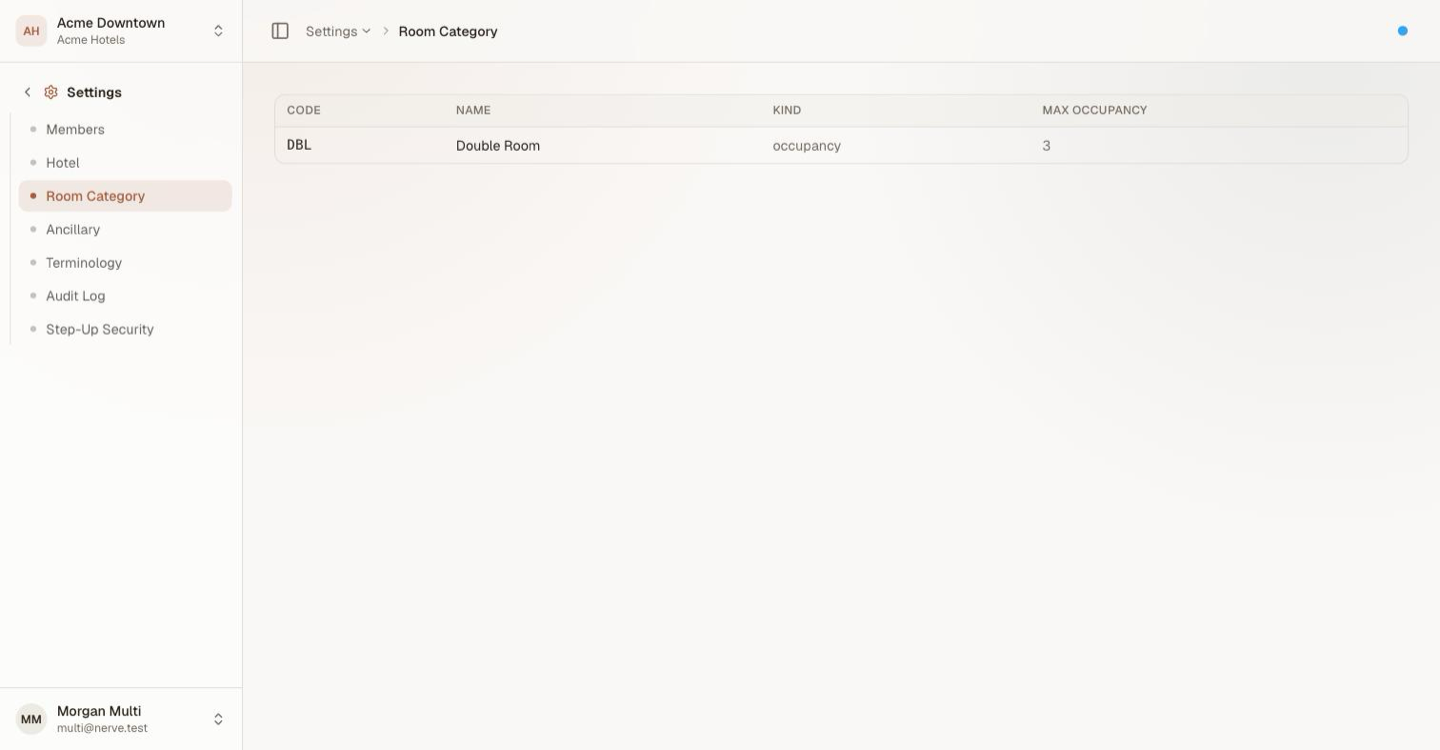
Every sellable category on the property, with the code channels quote it by.
| Column | What it is |
|---|---|
| Code | The short code the category is quoted by — what a channel and a booking carry |
| Name | What a guest sees |
| Kind | How it is sold — by occupancy, or as a whole unit |
| Max occupancy | The most people it may hold |
Categories themselves are created and priced in room categories and rate plans. This screen is about the rooms behind them.
Select a category to open it.
Three ways a room can belong#
A room can stand in three different relationships to a category, and the detail page shows all three:
| Relationship | What it means | Where it is set |
|---|---|---|
| Its own category | The room is a Double Room. One per room. | Assign a room → Assign to this category |
| Linked | The room sells through this category as well as its own. | Assign a room → Link into this category |
| Composed | The room is a whole unit made of other rooms, or one of the rooms inside one. | Compose a unit |
Put a room behind a category#
- Open the category.
- Select Assign a room.
- Choose the room number.
- Choose Assign to this category or Link into this category.
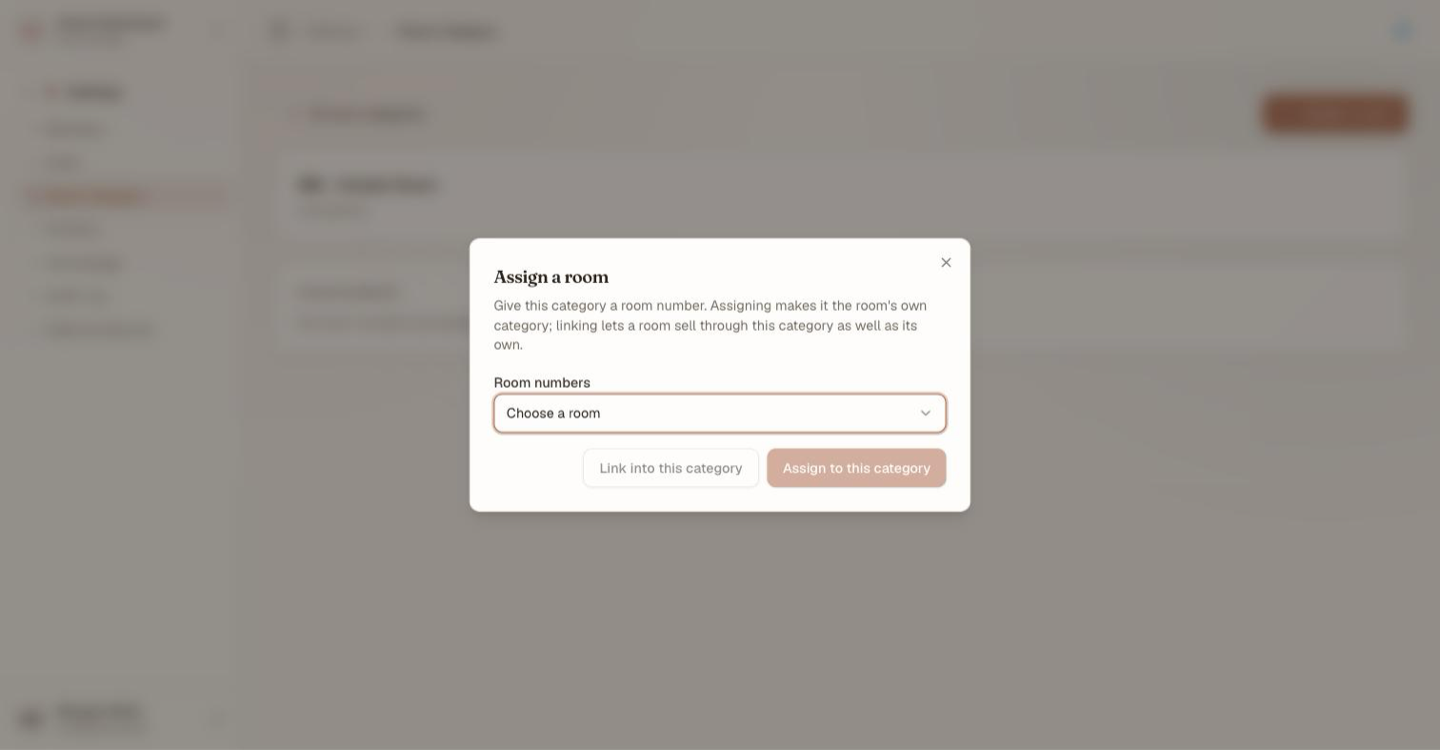
Two buttons, two different claims on the room.
Assign makes this the room's own category. The room is a Double Room now; that is what it will be sold and assigned as everywhere. A room has exactly one category of its own, so assigning it here takes it out of whatever it was before.
Link lends the room to this category without taking it away from its own. A deluxe room linked into Double Room is recorded under both — useful when a category is a way of selling rooms that already belong elsewhere.
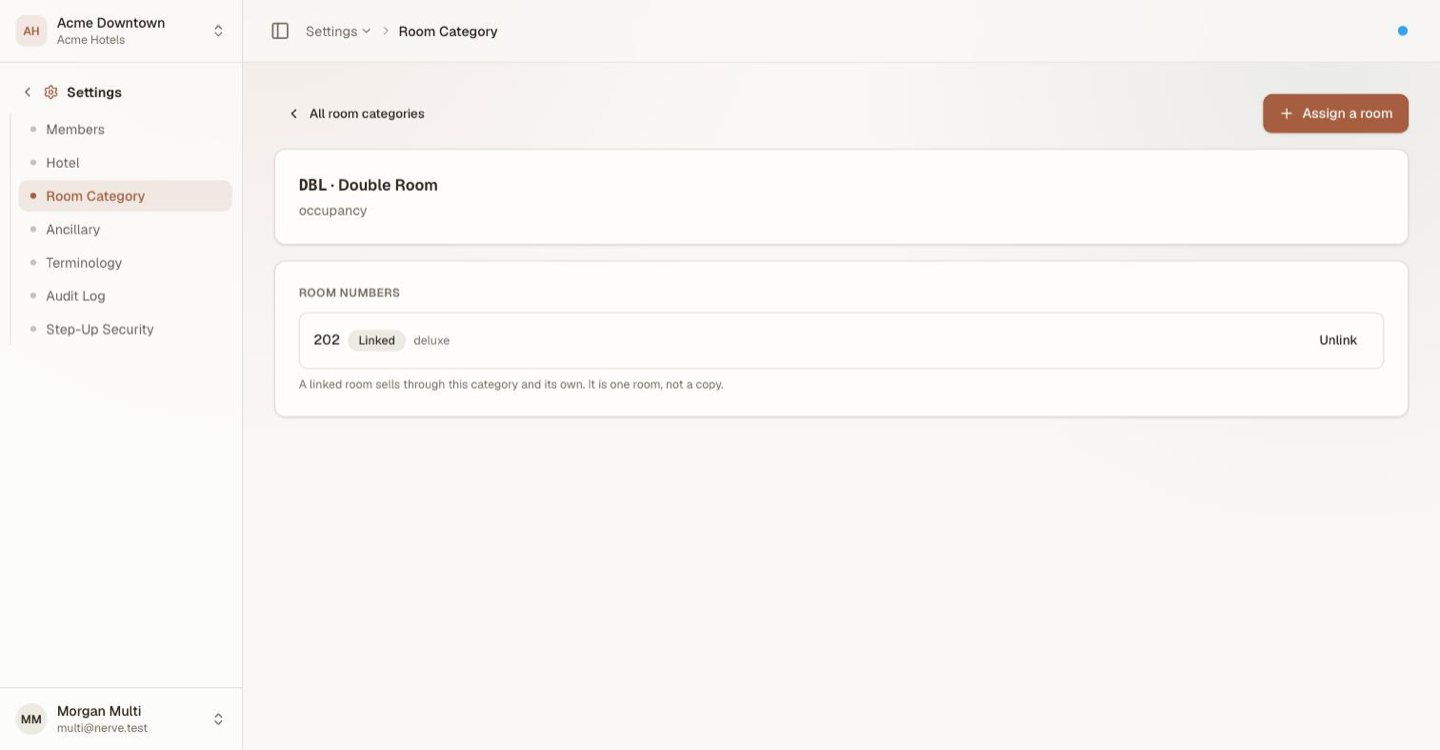
A linked room shows the category it actually belongs to beside the Linked badge — so it is always clear which claim is which.
A linked room is offered wherever the category it is linked into is asked for: the assign-room picker, the guided check-in, the walk-in, and the capacity check that decides whether a booking can be taken. It counts toward that category's availability, so a category whose inventory is reachable only through links still sells.
Penting
A linked room is one room, not a copy. Linking never creates inventory: selling it under either category closes it under both for those nights, because availability is computed on the room, not on the label it was sold under.
Take a room back#
Select Unlink on the room's row. The link goes; the room keeps its own category and everything already booked stays exactly where it is.
Unlinking changes what can be sold through this category next — not what has already been sold.
Edit a room's details#
Select the Details button on a room's row to open its attributes — the closest thing to a room-editing form that exists today, since there is no dedicated "edit room" screen yet.
| Field | What it is |
|---|---|
| Number | Renaming the room here changes what every screen calls it, immediately |
| Floor | Which floor this room is on, picked from the floors you created on the floor plan |
| View | A code from the Room views reference list — sea view, garden view, and whatever else your property offers |
| Smoking | Whether the room is a smoking room |
| Accessible | Whether the room is accessibility-adapted |
| Features | Any number of tags from the Room features reference list — balcony, bathtub, and so on |
The same dialog is where you delete a room outright, if it should never have existed on file. There is no confirmation step beyond the button itself, so treat it with the same care as deleting anything else that cannot be undone from this screen.
Floor, view and features feed two other screens directly: the rack's filter bar narrows by exactly these fields, and the floor plan is where a room's floor placement is actually drawn.
Set a room's bed composition#
Select the Beds button on a room's row to record which beds it actually has — a separate dialog from Details, since a bed list is a set of rows (bed type + count), not a single form's worth of fields.
- Select Beds on the room.
- Select Add bed to add a row, choose the bed type — single, twin, double, queen, king, sofa bed, extra bed, or a type your property added — and set the count.
- Repeat for every bed type the room holds.
- Select Save.
Saving replaces the room's whole bed list with exactly the rows on screen — removing a row and saving removes that bed type from the room, it does not merely leave it unchanged.
Catatan
The bed types themselves are a reference list, the same engine room views and features use — rename or add a type under Settings → Reference Data and it appears in this dialog's picker immediately, on every room, without a release.
Whole units and the rooms inside them#
Some properties sell the same physical space two ways: a three-bedroom villa as one whole unit, and each of its bedrooms on its own. Nerve models that as composition — a parent unit containing component rooms, one level deep — and the Composite units card on the category's page is where you build and read it.
Build a unit#
- Open the category the whole unit belongs to.
- Select Compose a unit.
- Choose the Parent unit — one of this category's rooms.
- Choose the Component room — any room in the property; a villa's bedrooms are usually typed as something else.
- Select Compose. Repeat for each further component.
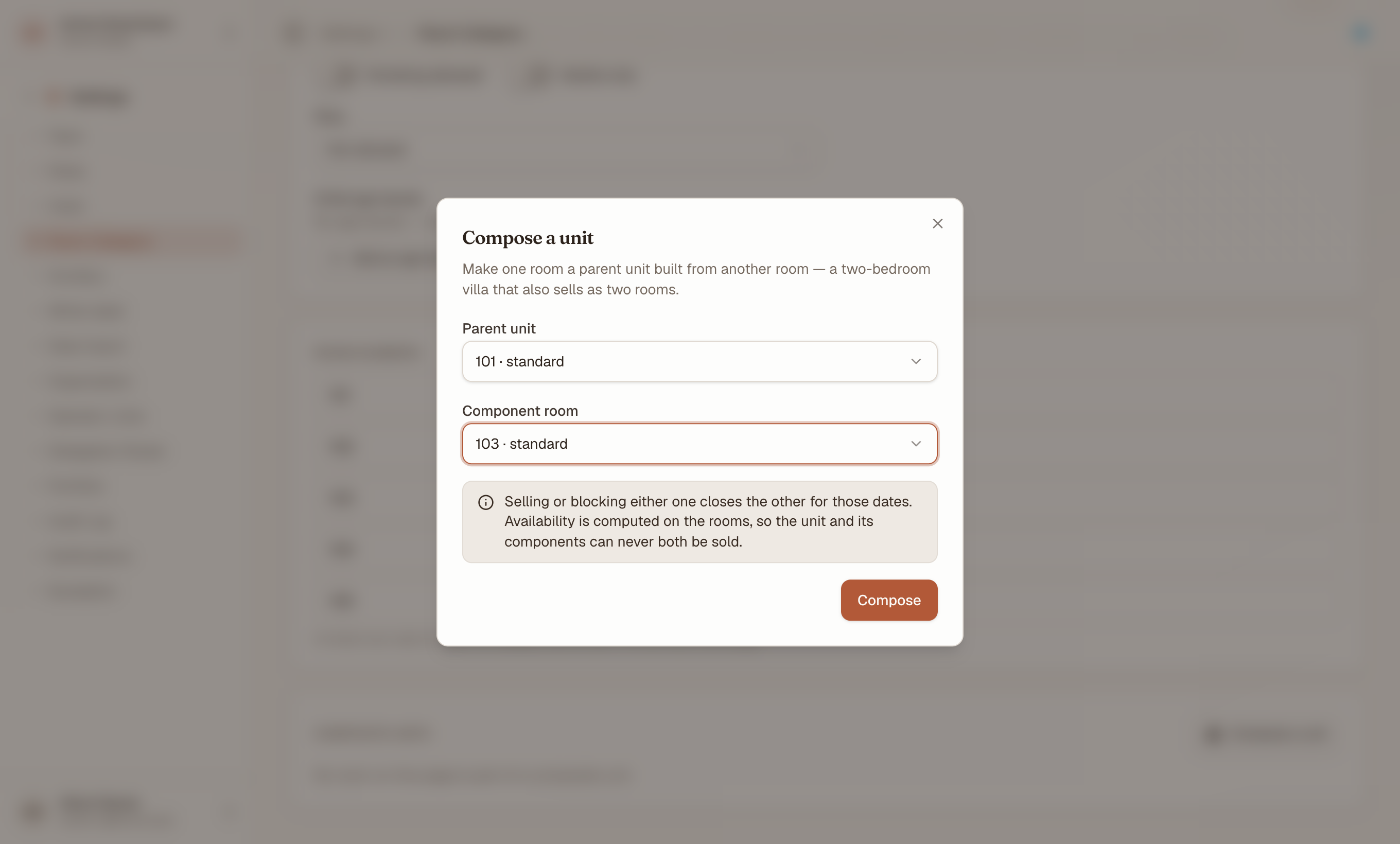
The consequence is stated in the dialog, above the button that commits it — not in a tooltip, and not afterwards.
The card then reads the structure back: a parent room badged Unit with each room it Contains beneath it, and a component room shows what it is Part of.
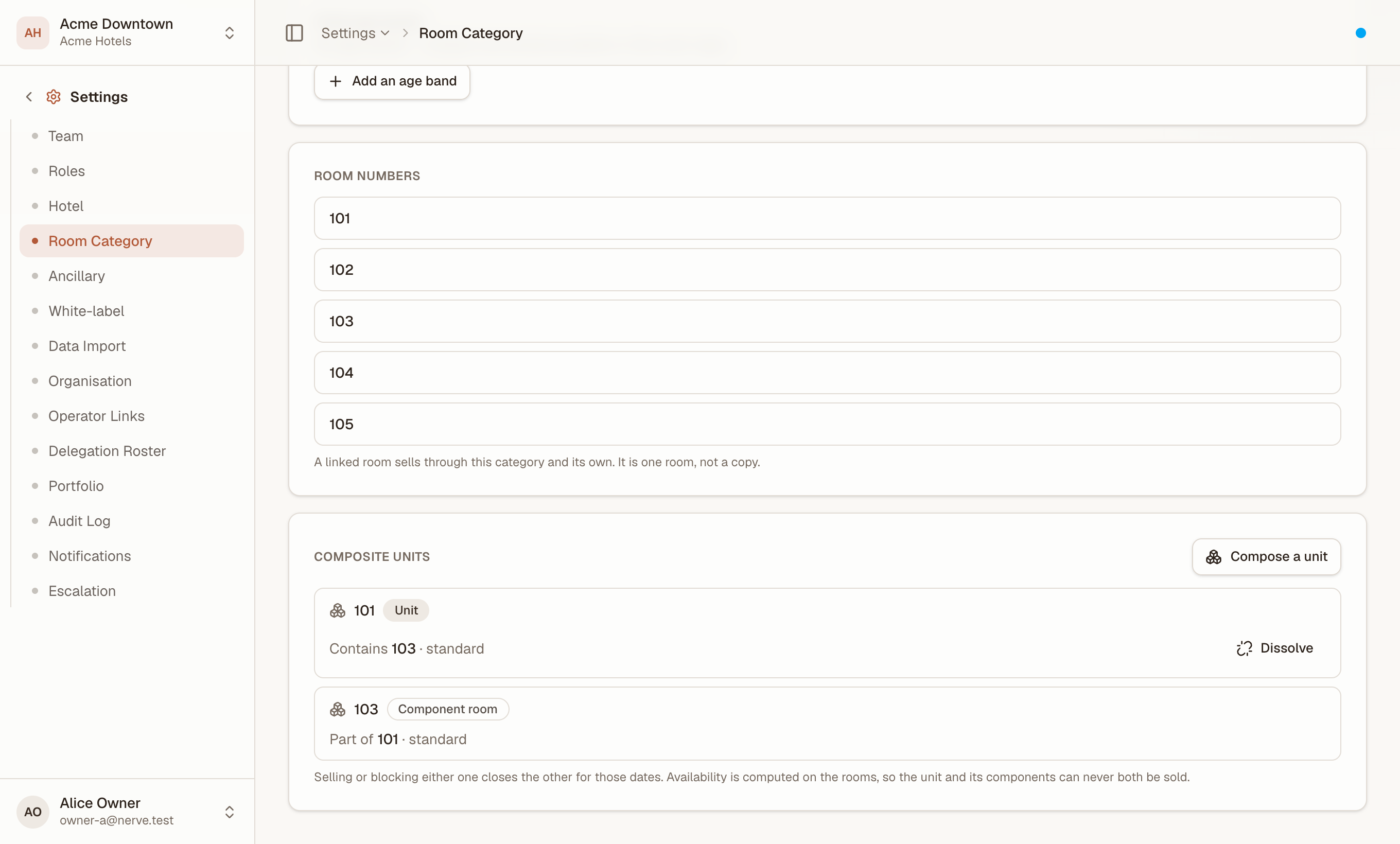
Both ends of the relationship are on the page when both rooms belong to this category — the whole, and the part.
Penting
Composing has a consequence the dialog states before you commit: selling or blocking either shape closes the other for those dates. The villa and its bedrooms can never both be sold for the same night, and that holds everywhere availability is computed — the rack, the guided flows, the direct booking engine and what is distributed to channels — because they all read the same availability, not a copy of it.
Catatan
A composed unit and its components carry a small Unit / Component badge on the room rack too, so the relationship is visible without opening this screen. A composed parent's bed count is not summed from its components automatically — set it directly on the parent room if the whole unit's bed list differs from any one component's.
Dissolve a unit#
Select Dissolve on the component's row. The rooms go back to being separate inventory; anything already booked stays where it is.
Rules the composer enforces#
A compose that breaks one of these is refused, and the message names which:
- A room cannot contain itself.
- Parent and component must be in the same property.
- Composition is one level deep — a component cannot itself be a parent, and a parent cannot be someone else's component.
- A component belongs to at most one unit. Dissolve the existing link before moving it.
Catatan
Composition is not the same thing as linking. Composition is one physical space having two shapes — the whole and its parts. Linking is one room being sold under a second name. A room can have both.
Compose a unit appears only once the category has at least one room, because the parent is always one of them. Assign a room first.
Connect two rooms#
A connecting pair is a third, separate relationship: two rooms that share an internal door. Unlike composition, connecting two rooms never closes one by selling the other — they stay two independently sellable rooms, and connecting them is purely informational, so the desk knows a family in 201 and 202 can be given the interconnecting pair without asking housekeeping to check.
The Connecting rooms card sits on the category's page alongside Composite units.
- Select Connect.
- Choose Room A — one of this category's rooms.
- Choose Room B — any other room in the property.
- Select Connect.
To undo it, select Disconnect on the pair's row. Neither room is affected — only the record that they share a door.
Catatan
Composing and connecting answer different questions and can both be true of the same pair. A composed unit is sold and closed as one; a connecting pair is sold separately and simply happens to share a door.
What's next#
- The floor plan — draw a room's physical position, once its floor is set here
- The room rack — where rooms are assigned, and where the view/floor/smoking filter and the Unit/Component badge both live
- Reference data — rename or add a bed type, a view, or a feature
- Room categories and rate plans — creating and pricing a category
- Take a room out of order — taking a room off the market