Housekeeping
The room status board
One tile per room: the state it is in, whether a guest is in it, how to move it from dirty to clean to inspected, and the standing requests on its occupant.
Terakhir diperbarui
Who this is for: Front Desk, Manager, Owner — requires
housekeeping.status.update. Where: Housekeeping → Room Status Board
The board is one tile per room, showing what state the room is in and whether someone is in it. It is the whole Housekeeping module: a supervisor works the floors from it, and the front desk reads the result.
Catatan
This section uses the default terminology. Your house may have renamed these terms under Settings → White-label.
Read the board#
Each tile carries the room number and type, an Occupied badge when a stay is in-house on it, and the room's current status:
| Status | What it means | Ready for check-in |
|---|---|---|
| Dirty | Needs cleaning | No |
| Clean | Cleaned, not yet checked | Yes |
| Inspected | Cleaned and verified | Yes |
| Out of service | Not usable — maintenance, deep clean | No |
Clean and Inspected are both ready. The gate the front desk hits is ready, not inspected, so a room your team has finished is sellable before a supervisor has walked it. Inspected records that someone checked; it unlocks nothing that Clean has not already unlocked.
An occupied tile also carries the stay's open special requests — high floor, a baby cot, an allergy — as small tags beneath the status badge, so a housekeeper knows what the room needs without leaving the board or opening the reservation. A room with none shows nothing extra.
The board shows one property's rooms. Use the property switcher at the top of the sidebar to see another.

Every room, one card each. The badge is the current status and the selector under it is how you change it — and a room with a guest in it carries Occupied as well, because occupancy and cleanliness are two different facts about the same room.
Move a room through the lifecycle#
The working rhythm is dirty → clean → inspected.
- Find the room's tile.
- Open the status selector on it.
- Choose the new status.
The tile updates as soon as the server accepts the change, and it persists — there is nothing to save.
Catatan
The selector offers all four statuses in any order. It is a lifecycle in practice, not a state machine: send a room straight from Inspected back to Dirty when a guest leaves early, or to Out of service the moment something breaks.
Anyone holding housekeeping.status.update can make any of those moves — there is no separate permission for inspecting. The default Front Desk role carries the whole board, which is why a desk agent covering the floors needs no extra grant. Without the permission the board still renders; the selector does not appear.
The board is usable at phone widths, which is where most of its updates are made.
Watch it update itself#
The board is live. A status changed on another device — or by a check-out completing at the desk — appears here without a reload, so a supervisor and the front desk are never working from two different answers.
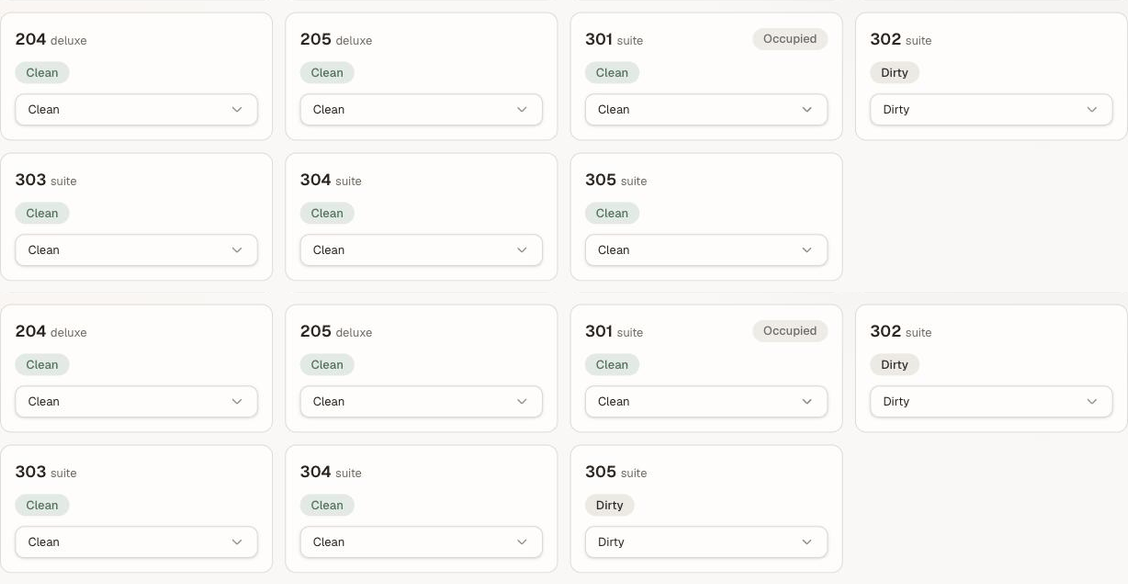
Nothing is touching this screen and nobody reloaded it — room 305 was changed elsewhere, and the change arrived.
Know what the board does not decide#
Two things change a room's state without anyone touching a tile:
- A check-out drops the room to Dirty. Completing a check-out on Departures & Check-out flips it automatically — there is no manual step, and no way to skip it.
- A room block is a different thing. Blocking a room out of order or out of service on the room rack removes it from availability for a date range, so it cannot be sold or assigned at all. The board's Out of service status is about readiness today. A room can be dirty and unblocked, or clean and blocked; the two answer different questions.
What's next#
- Readiness and the check-in gate — how a status change reaches the front desk, and what it stops
- Check a guest in — the other side of the gate
- Standing requests on a stay — where the tags on an occupied tile come from