Lễ tân
The room rack: assign, move, look ahead
Rooms down, nights across. Choose how far ahead to look, drag a stay onto a room, and let auto-assign place a queue.
Cập nhật lần cuối
Who this is for: Front Desk, Manager, Owner — requires
frontdesk.room.assign. Where: Front Desk → Room Rack
The rack is rooms down the side and nights across the top. It answers the two questions a desk asks all day: which room does this booking go in, and what is free.
Choose the window#
The rack looks forward from a Start date for a Range you choose — 14, 21, 30, 45, 60 or 90 days. Set the start, set the range, and the grid follows.
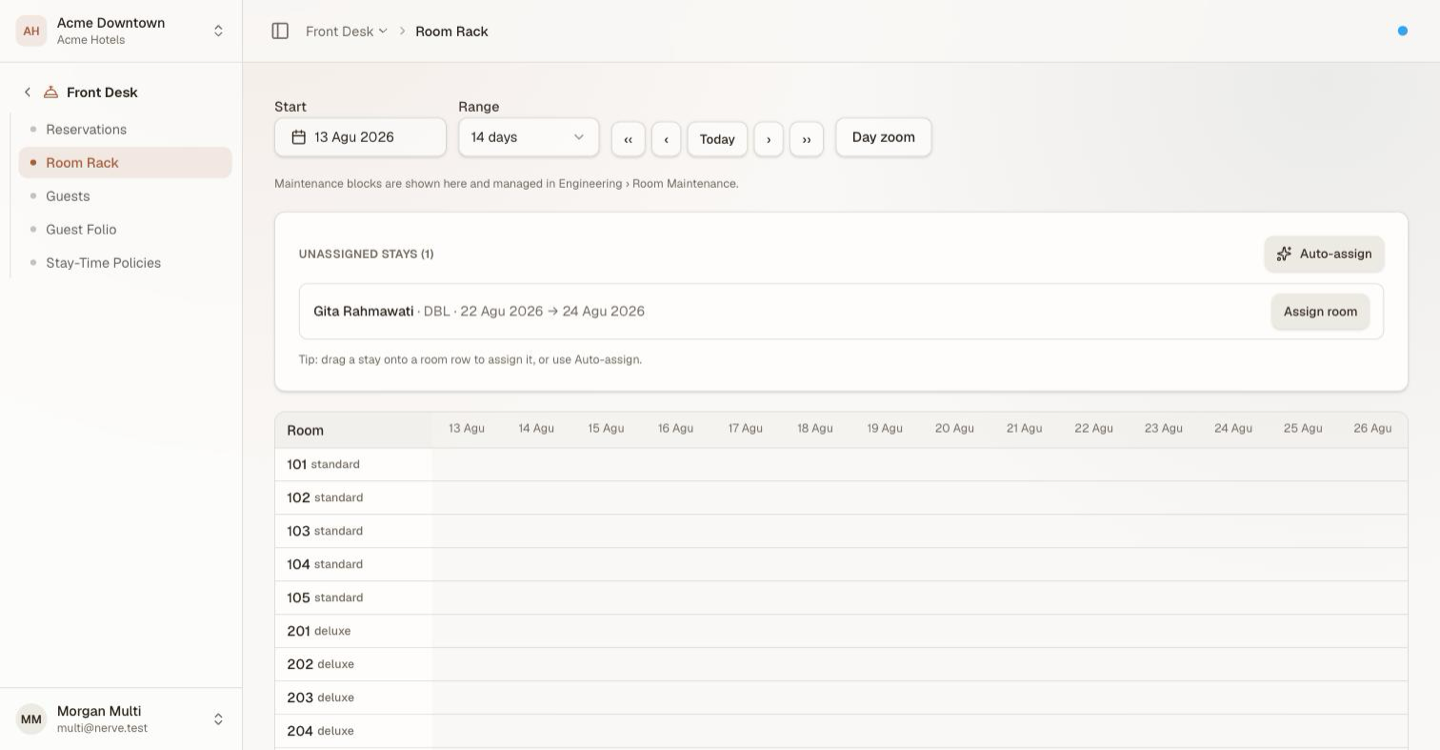
Start, range, and the four jump buttons. The line under them says where maintenance blocks are managed — they are shown here, but made elsewhere.
The jump buttons move that window without touching the range:
| Button | Moves |
|---|---|
| ‹ and › | One week back or forward |
| ‹‹ and ›› | One whole range back or forward — the next page of the grid |
| Today | Back to a window starting today |
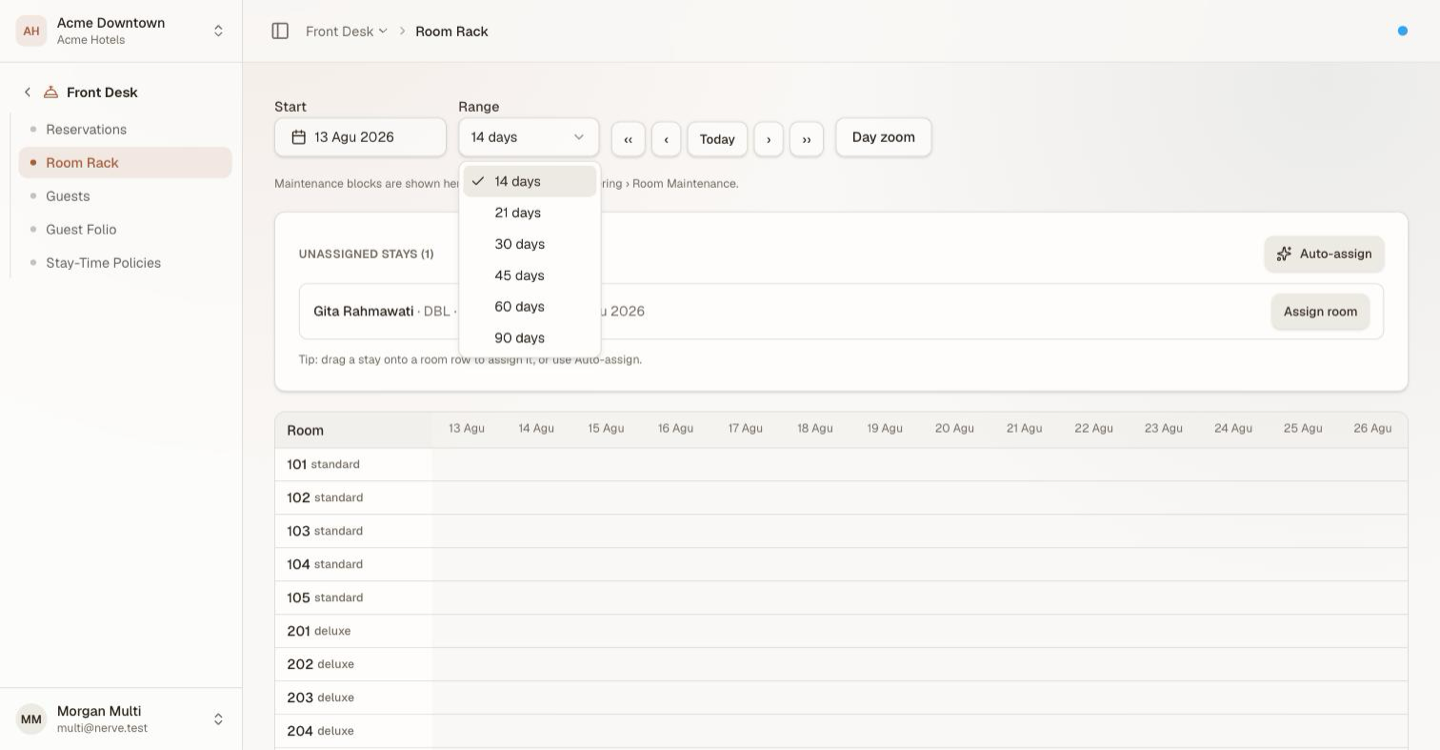
Two weeks is the working default. Widen it when the question is a pattern rather than a room — where the gaps fall next month, whether a long stay can be honoured without a move.
The room column and the date header stay put as you scroll, and long room lists render only what is on screen, so a 90-day window on a large property still scrolls without lag.
Filter the grid#
A filter bar above the grid narrows which rooms are shown, by three of a room's own attributes:
| Filter | Narrows to |
|---|---|
| View | Rooms carrying a specific entry from the Room views reference list |
| Floor | Rooms on one floor — the choices offered are whatever floors are actually present among the rack's rooms |
| Smoking | Smoking rooms only, non-smoking only, or either |
This is a client-side narrowing of the grid you already loaded — no extra request goes to the server, so applying or clearing a filter is instant. A Clear link appears once any filter is set. The filters only ever hide rooms; they never change what a room actually is, and they reset when you leave the screen.
Read the grid#
| What you see | What it is |
|---|---|
| A shaded bar across cells | A stay occupying that room for those nights |
| A green bar | A stay that is already in-house |
| A red-tinted cell marked OOO or OOS | A maintenance block — out of order, or out of service |
| An amber strip along the bottom of a cell | A turnaround buffer between two stays |
| An orange or cyan strip | A timed engineering or housekeeping service block |
| A small Unit / Component badge beside a room number | The room is part of a composite unit — badged on whichever of the two roles it plays |
| An empty cell | Free |
Hover any bar for the guest and their state, or a block for its reason.

Rooms down, nights across. Each occupied night carries a two-letter chip rather than a full name — hover it for the stay — and the thin amber marker beneath a stay is its turnaround buffer.
Stays waiting for a room sit in an Unassigned stays card above the grid, with the count in its heading. That card is the day's work list.
Assign a room by dragging#
- Find the stay in the Unassigned stays card.
- Drag it onto the row of the room you want.
- Release.
The row highlights as you drag over it. Dragging a bar that is already on the grid moves that stay to a different room the same way.
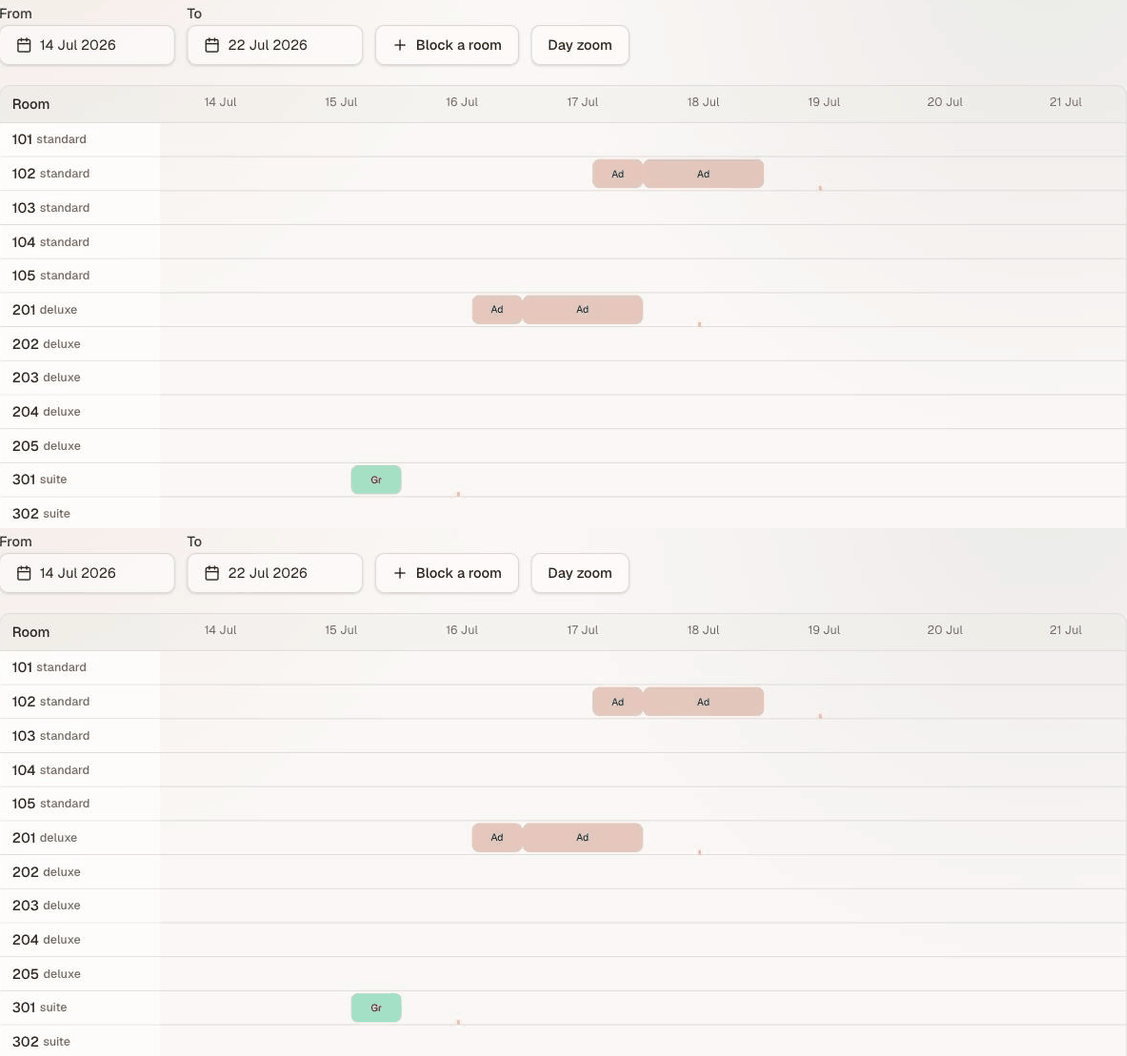
Moving a stay between rooms. The dates do not change and nothing else about the booking does — only which row it sits on.
Quan trọng
Every drop is validated on the server, not in the browser. Dropping a stay onto a room already occupied for overlapping nights is rejected, the rack reverts, and the reason appears above the grid. There is no path here that produces a double booking — including the drag that looks like it worked for a moment.
Assign a room from the picker#
When dragging is awkward — a long list, a touch screen — use the picker instead.
- Select Assign room on the unassigned stay.
- Pick a room number from the free rooms offered.
Only rooms of the stay's type that are free for its whole date range are listed, so anything you can select is a legal assignment.
Place a queue with auto-assign#
- Select Auto-assign in the Unassigned stays card.
- Read the suggestion for each stay — a conflict-free room of the right type.
- Accept one, Override it with the picker, or Accept all to take every suggestion at once.
A stay with no conflict-free room of its type says so instead of guessing. Accepting a suggestion goes through exactly the same server check as a drag, so auto-assign is a faster way to reach the same decision, not a looser one.
Ghi chú
Auto-assign matches a stay to rooms whose own category matches what was booked. A room that has merely been linked into that category in Settings → Room Category is not suggested — place that stay with Override or a drag, both of which accept any free room.
Blocking a room happens elsewhere#
Blocks are shown on the rack and made in Engineering → Room Maintenance — see take a room out of order. Taking a room off the market is maintenance work with its own worklist, reasons and clear-down; the rack is where the desk reads the consequence.
If you could block a room from the rack before, you can still block one: the permission did not change, only the screen.
Look at a single day hour by hour#
Select Day zoom to swap the grid for one day at hour precision: each room becomes a 24-hour track with its occupancy, turnaround buffers and timed service blocks positioned by the clock, in the property's own time zone. Step through days with Prev and Next, and return with Grid view. The range selector is hidden while you are zoomed into one day — there is only the day. The Unit/Component badge and the view/floor/smoking filter both carry over into this view.
Use it when the question is when rather than whether — an early arrival landing on a late departure, or whether a room has time to be turned between two stays.
What's next#
- Create, change and cancel a reservation — where a stay comes from, and where you check it in
- Room categories, and the rooms behind them — where a room's floor, view, smoking and feature attributes are set, and where composite units are built
- The floor plan — the same rooms, laid out by physical position instead of by time
- Take a room out of order — blocking, and clearing a block
- The room status board — whether the room is ready