แผนกต้อนรับ
Set up the ancillary catalog
Author the extras a guest can buy against a stay — late check-out, an extra bed, a transfer — with the pricing and the check each one needs.
อัปเดตล่าสุด
Who this is for: Front Desk, Manager, Owner — requires
frontdesk.ancillary.sellto reach the screen andfrontdesk.ancillary.manageto author it. Where: Settings → Ancillary
An ancillary is something a guest buys against a stay rather than as part of the room rate: a late check-out, an extra bed, an airport transfer, breakfast. The catalog is the house's list of them, with a price and a fulfilment rule for each.
Authoring that list is configuration, so it lives in Settings beside the property's other standing decisions. Selling from it is desk work and happens on the stay. The old Front Desk → Ancillary Catalog address still works and takes you here.
The price is snapshotted onto every sale, so raising a price tomorrow never changes what a guest was charged today.
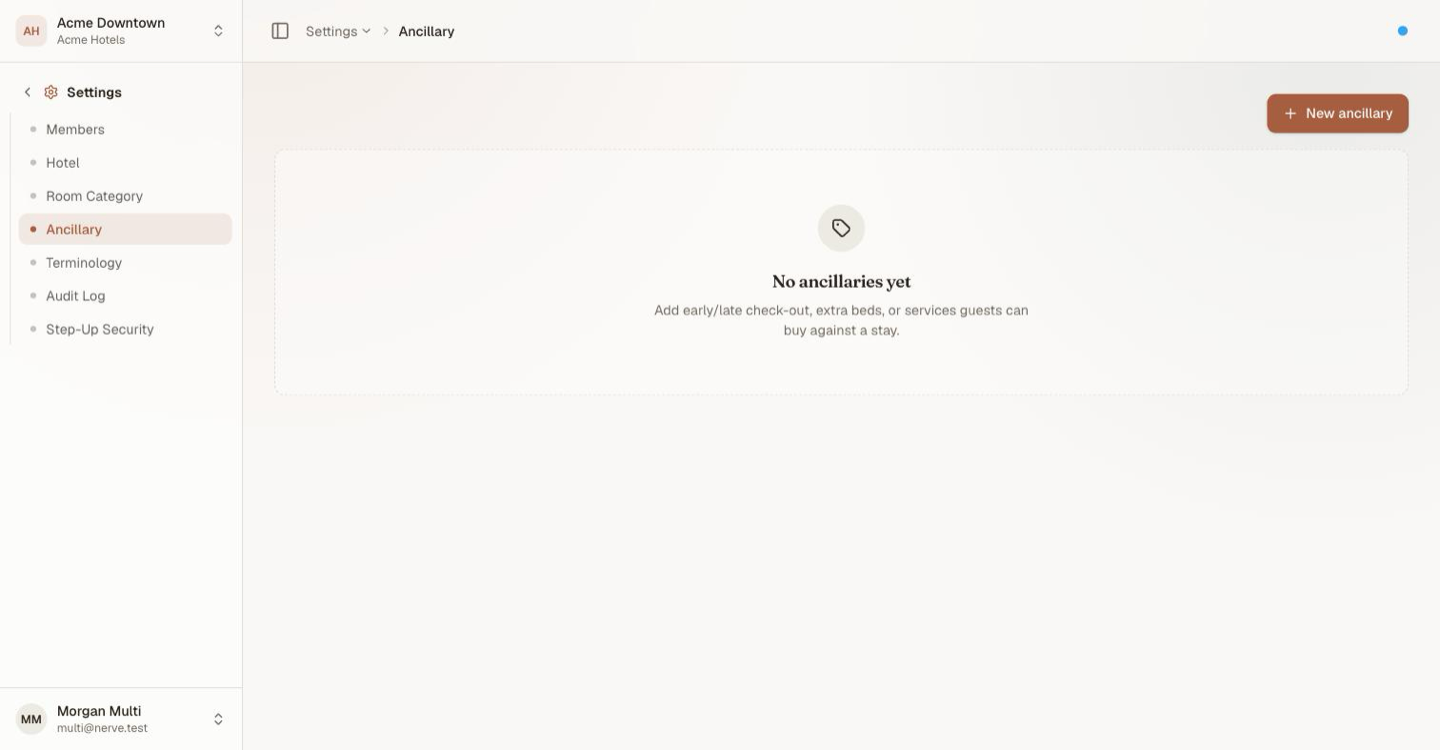
A house that has not authored any extras yet. Until an entry exists here, there is nothing for the desk to sell.
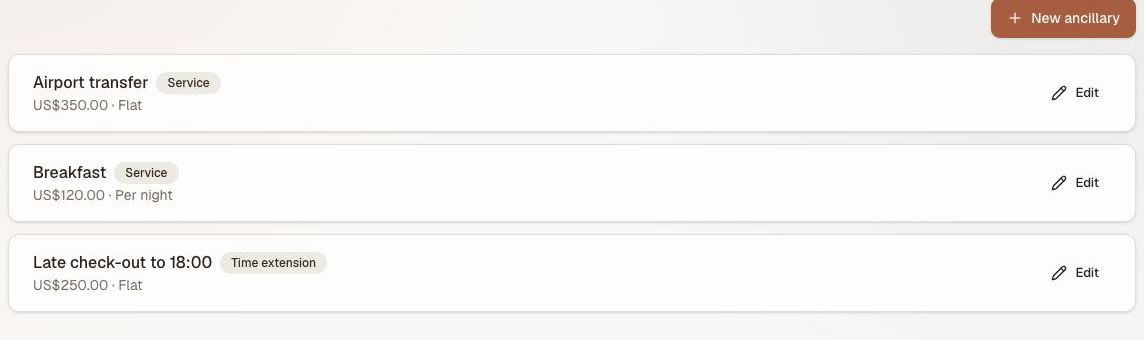
A catalog with one of each shape in it. Every row shows its kind and its pricing mode, which together are what the folio line will end up saying.
Choose the fulfilment kind#
The fulfilment kind decides what Nerve checks before the sale is allowed. It is the one field you cannot change afterwards — the history of every sale depends on it.
| Kind | For | Checked at sale |
|---|---|---|
| Time extension | Late check-out, early check-in | That the room is free for the extra hours |
| Physical item | Extra bed, cot, parking space | That something is left in the pool |
| Service | Transfer, breakfast, spa slot | Nothing structural — it is a charge |
Add an ancillary#
- Open Settings → Ancillary.
- Select New ancillary.
- Name it as a guest would recognise it — the name reaches the folio.
- Choose the Fulfillment kind.
- Choose the Pricing — Flat, Per night, Per unit or Per hour — and enter the price.
- Fill the field the kind adds:
- Physical item → Pool size, how many you own. Sales are refused once they are all out.
- Time extension → Default boundary, the clock time the extension runs to, as
HH:MM.
- Leave Active ticked.
- Select Create.
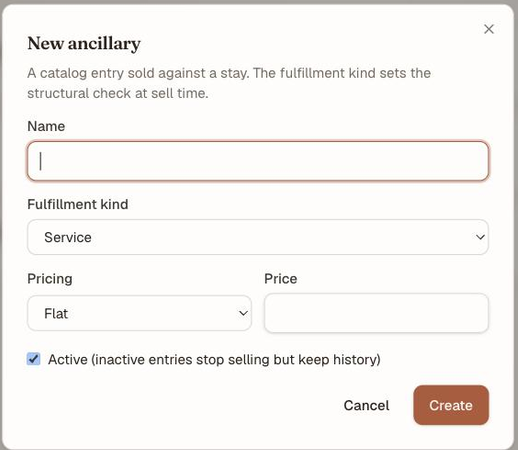
The dialog states the rule in its own subtitle: the fulfilment kind sets the structural check at sell time. Active is a selling switch, not a delete — see below.
เคล็ดลับ
Match the pricing mode to the thing. A cot is Per night, a transfer is Flat, a late check-out is Per hour, a second parking space is Per unit. Getting this right at creation is what makes the folio line read sensibly later.
Retire an ancillary#
Untick Active and save. The entry stops being sellable and keeps every sale already made against it — which is why there is no delete. An inactive entry shows in the list badged Inactive.
Retire rather than repurpose. Renaming a discontinued item into a new one rewrites the meaning of every historic folio line that referenced it.
Change a price#
Edit the entry and save the new amount. Sales already made keep the price they were sold at; the new price applies from the next sale. The fulfilment kind stays locked — if the thing has genuinely changed shape, retire it and add a new entry.
What's next#
- Stay-time policies — the alternative to selling a late check-out: give the rate its own clock
- Folios: post, split and transfer charges — where a sold ancillary lands
- Create, find, change and cancel a reservation — cancelling a stay reverses its ancillaries