แผนกต้อนรับ
Guest profiles, history and merging duplicates
One durable profile per person, so a repeat guest arrives with their history — and two profiles for one person can be folded into one.
อัปเดตล่าสุด
Who this is for: Front Desk, Manager, Owner — requires
frontdesk.guest.read; creating needsfrontdesk.guest.writeand merging needsfrontdesk.guest.merge. Where: Front Desk → Guests
A guest profile is the person, not the booking. It outlives every stay attached to it, which is what lets a returning guest arrive with their history rather than as a stranger.
Every reservation attaches to a profile, so this screen is usually the first stop before a booking.
Find a guest#
Type into Search. It matches on name, e-mail and phone, so a half-remembered surname or the number a guest called from both work.
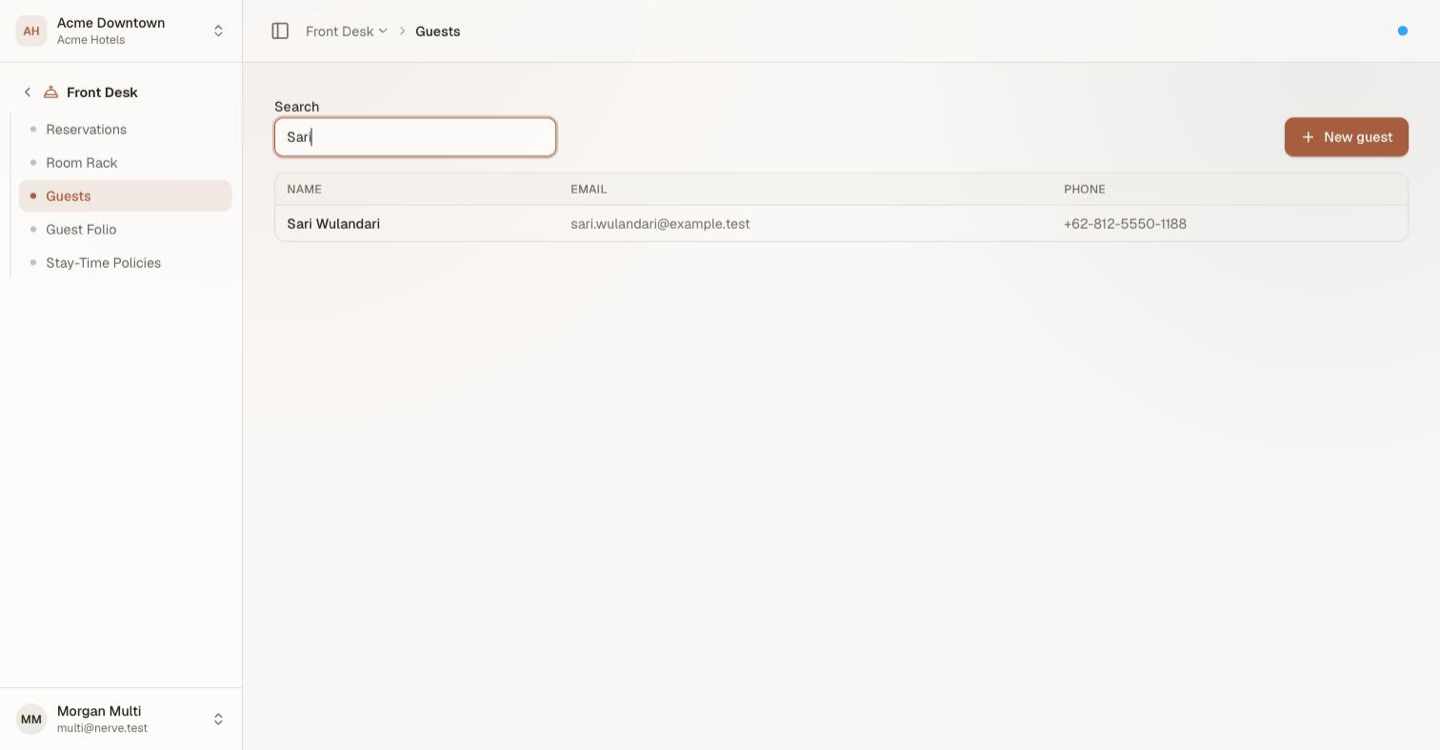
One search box across all three fields is what lets you find a returning guest before creating a second profile for them.
The directory pages rather than scrolling forever — use Previous and Next under the table, or narrow it with the search box, which is almost always faster.
Create a guest#
- Select New guest.
- Enter the full name — the only required field.
- Add e-mail and phone if you have them.
- Select Create guest.
Add the contact details when you can. They are what duplicate detection matches on later, and a profile with neither is one nobody will ever find by search.
Open a profile#
Select a name to open the guest's own page.
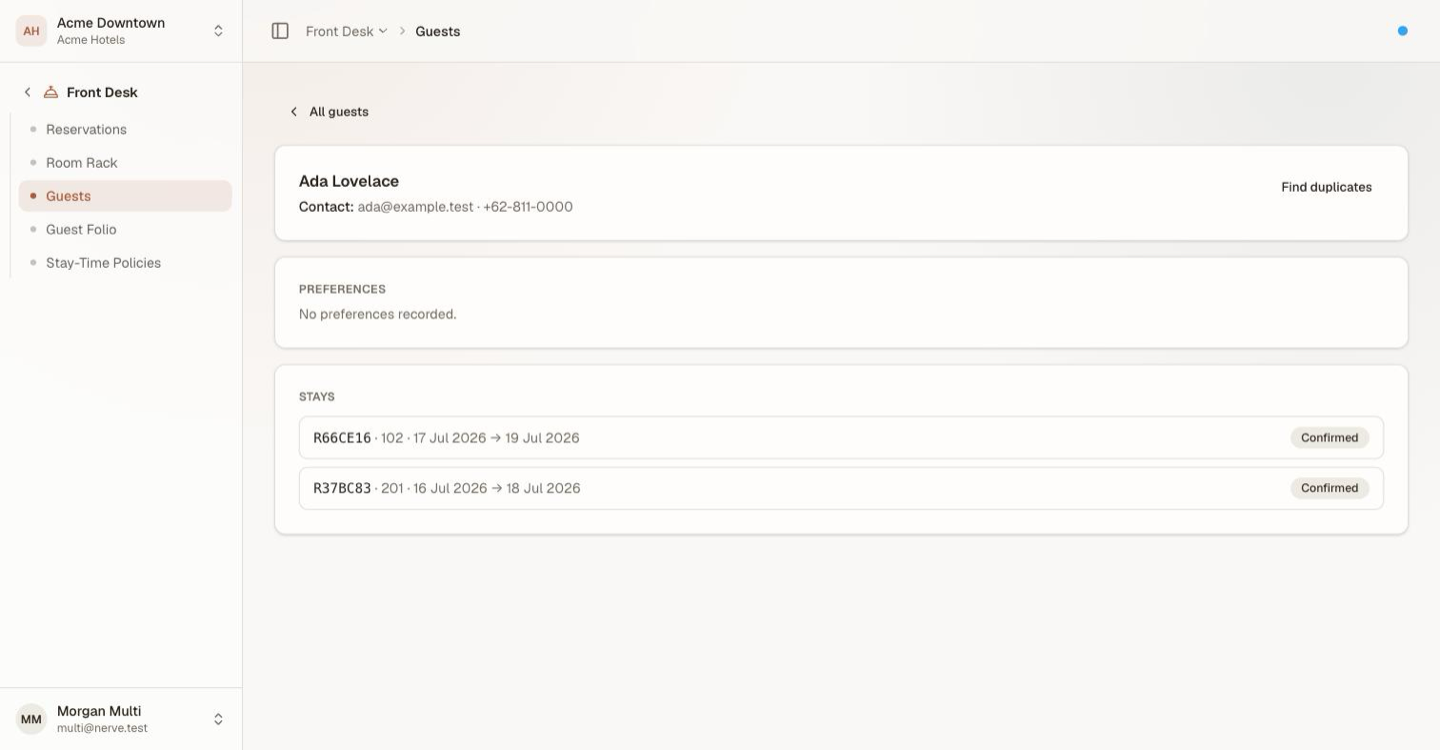
The person, and everything the house knows about them.
- The header carries the name and contact details, and the Find duplicates action.
- Preferences are the standing notes that should survive a stay — a high floor, a firm pillow, an allergy. A profile with none says so rather than showing an empty panel.
- Stays is the history: every stay this profile has carried, with its booking code, room, dates and state. Select a booking code to open the reservation.
That history is the reason merging matters. A guest split across two profiles has half a history on each, and the desk sees neither.
Merge a duplicate#
Duplicates happen — a guest books direct and again through a channel, or a colleague creates a second profile mid-shift rather than searching. Merging folds one into the other without losing anything.
Work out which profile you want to keep first. The merge is directional: the profile you started from survives.
- Open the profile you want to keep.
- Select Find duplicates.
- Read the candidates — profiles sharing its e-mail or phone.
- Select Merge in on the one to fold away.
Every stay from the folded profile is re-pointed onto the survivor, so both histories end up on one record and nothing is orphaned. The duplicate is gone from the directory.
ข้อควรระวัง
A merge cannot be undone from this screen. Check the candidate is genuinely the same person before folding it in — a shared family e-mail address puts two real people on one profile, and separating them again is manual work.
หมายเหตุ
Find duplicates only offers profiles that share a contact detail. Two records for the same person with no e-mail or phone in common will not be proposed, which is another reason to capture contact details at creation.
What's next#
- Create, find, change and cancel a reservation — book the profile you just found
- Folios: post, split and transfer charges — what their stay is charged