แผนกต้อนรับ
Create, find, change and cancel a reservation
Book one stay or a whole group, shop the rates before committing, record the terms the booking was sold on, and work it from its own page.
อัปเดตล่าสุด
Who this is for: Front Desk, Manager, Owner — requires
frontdesk.reservation.readto see the list,frontdesk.reservation.writeto change it. Where: Front Desk → Reservations
The reservations screen is the property's book of business: every reservation the house holds, searchable and filterable, one row each.
A reservation is the booking. A stay is one guest in one room for one set of dates. Most reservations hold exactly one stay; a group reservation holds several, which is the only difference between the two.
Before you can book anyone, they need a guest profile — see guest profiles and merging duplicates.
Read the list#
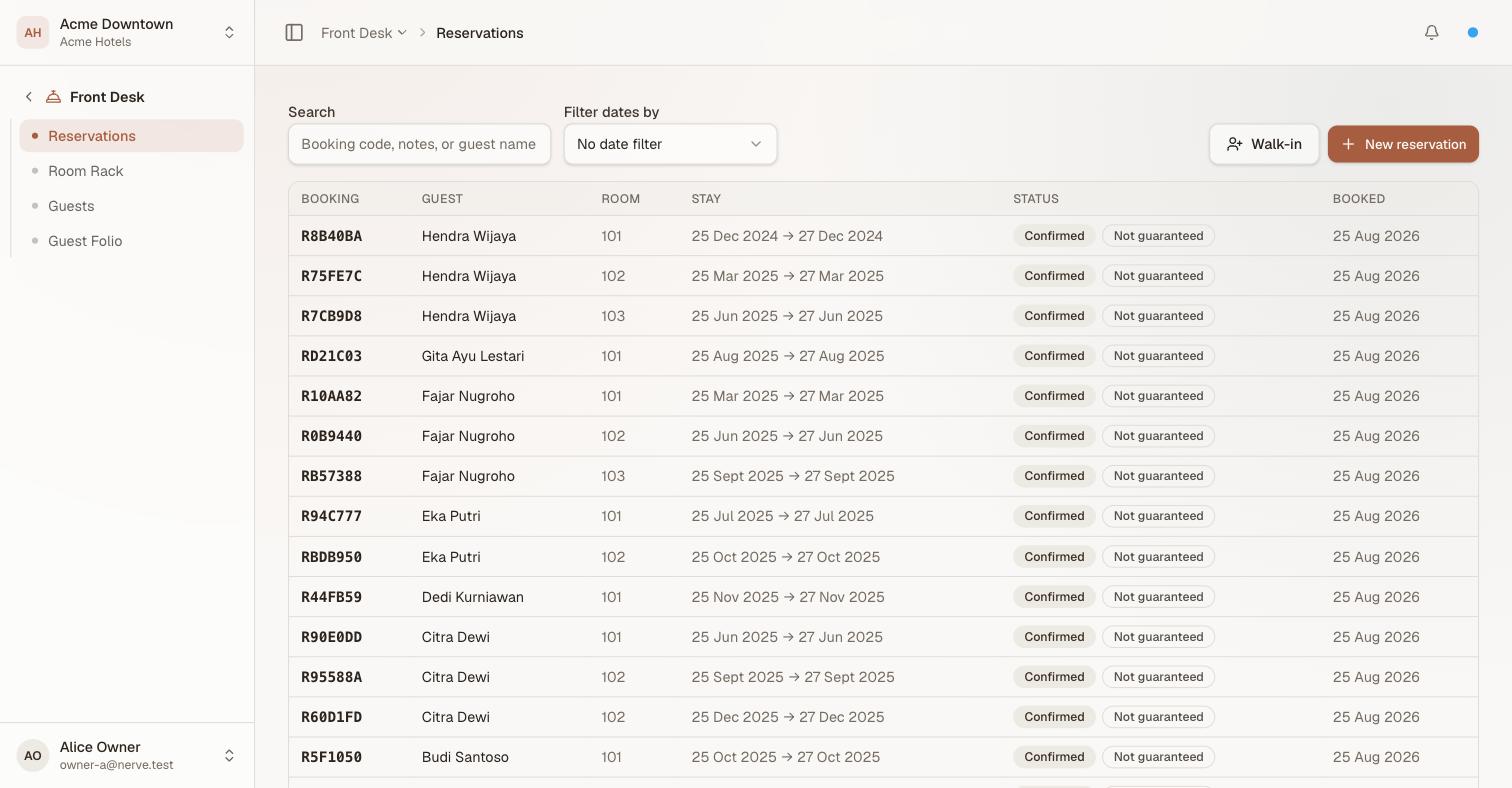
One row per reservation, newest booking first. The second badge in the status column is the guarantee — it appears only when a booking is not guaranteed, because that is the exception worth chasing.
| Column | What it shows |
|---|---|
| Booking | The reservation code. Select it to open the reservation. |
| Guest | The guest on the first stay |
| Room | The room assigned to it, or the category booked if no room is assigned yet |
| Stay | Arrival and departure dates |
| Status | The state that matters most across the reservation's stays — an in-house stay outranks a confirmed one, which outranks departed, no-show and cancelled — plus a Not guaranteed badge where the booking has no guarantee |
| Booked | When the reservation was taken |
A reservation with no stays on it yet — a shell created by an integration, for instance — shows dashes rather than inventing a row.
The list pages at 25 reservations. Move through it with Previous and Next under the table; the count tells you where you are in the whole filtered set, not just this page.
Find one reservation#
Type into Search to match on the booking code, the reservation's notes, or a guest's name. Searching resets you to the first page.
Filter by date#
A reservation has four different dates a desk might care about, and asking about two at once is almost always a mistake. So you choose one axis at a time:
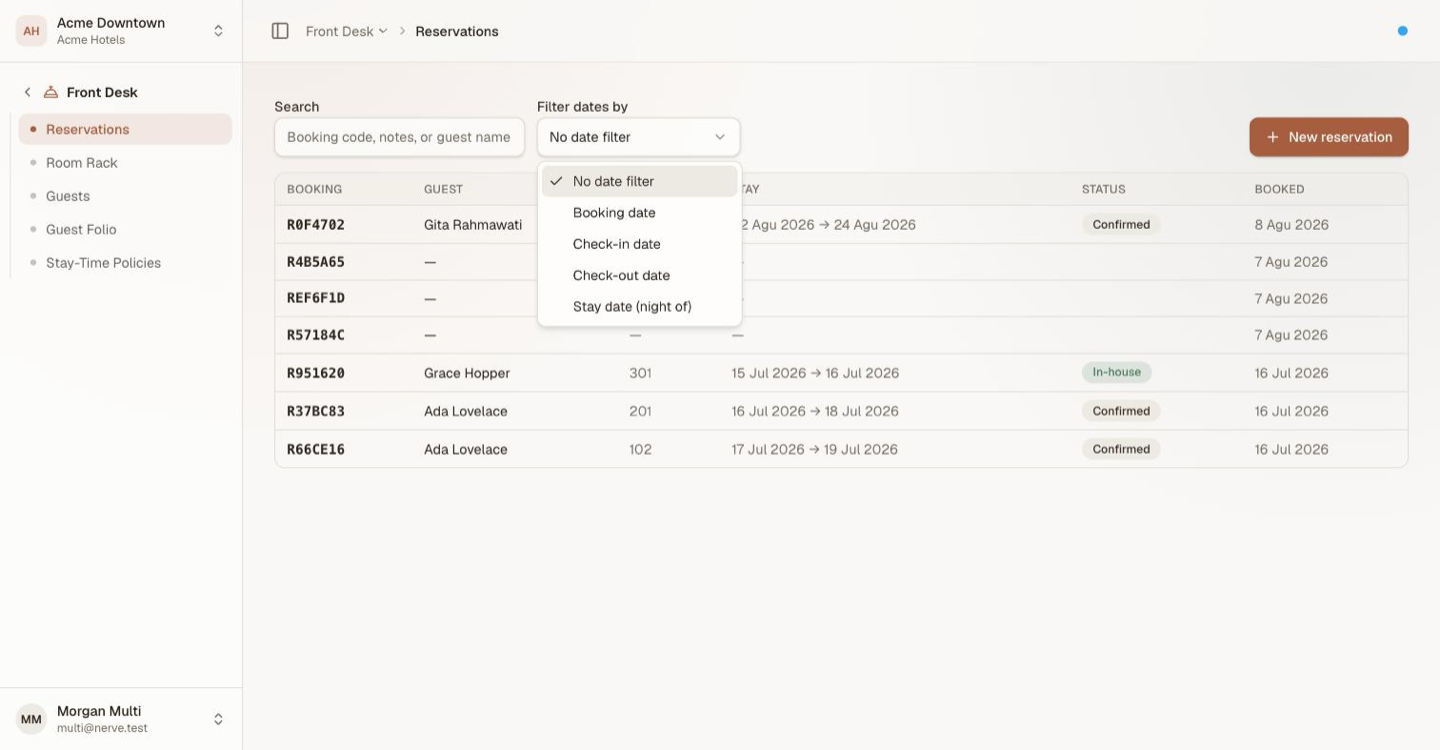
| Axis | Answers |
|---|---|
| Booking date | When was this sold? — yesterday's pickup, this week's production |
| Check-in date | Who is arriving? — today's arrivals list |
| Check-out date | Who is leaving? — today's departures list |
| Stay date (night of) | Who is in the house on this night? — including everyone who arrived earlier and has not left |
Choose an axis and From and To appear. Fill either or both: a From alone is on or after, a To alone is on or before. Clear filters puts the list back to everything.
หมายเหตุ
Stay date asks a different question from the other three. Check-in date finds stays that start in your window; stay date finds stays that cover the night you named — which is what you want for an in-house count, and what you do not want when you are building an arrivals sheet.
These filters are why there is no separate Arrivals or Departures menu: a check-in date of today is the arrivals sheet, and it is the same list you already know how to work.
Create a reservation#
- Open Front Desk → Reservations.
- Select New reservation.
- Choose the guest for the first stay.
- Pick the room category and the arrival and departure dates.
- Add a note if the booking needs one — it shows on the reservation, not on the stay.
- Select Create reservation.
The reservation is created confirmed, with a code you can quote to the guest. No room is assigned yet: assignment is a separate decision, made on the room rack.
หมายเหตุ
Availability is re-checked on save, not while you type. If the last room of that category went while the dialog was open, the create is refused with an availability error and nothing is booked.
Shop the rates before committing#
A guest on the phone asks what a Thursday would cost instead. Shop rates, under the room type in the create dialog, answers that without leaving the booking.
It opens a grid: one column per date across the stay, plus two days either side, and one row per rate plan that actually sells this room type. Each column head states how many rooms are left that night.
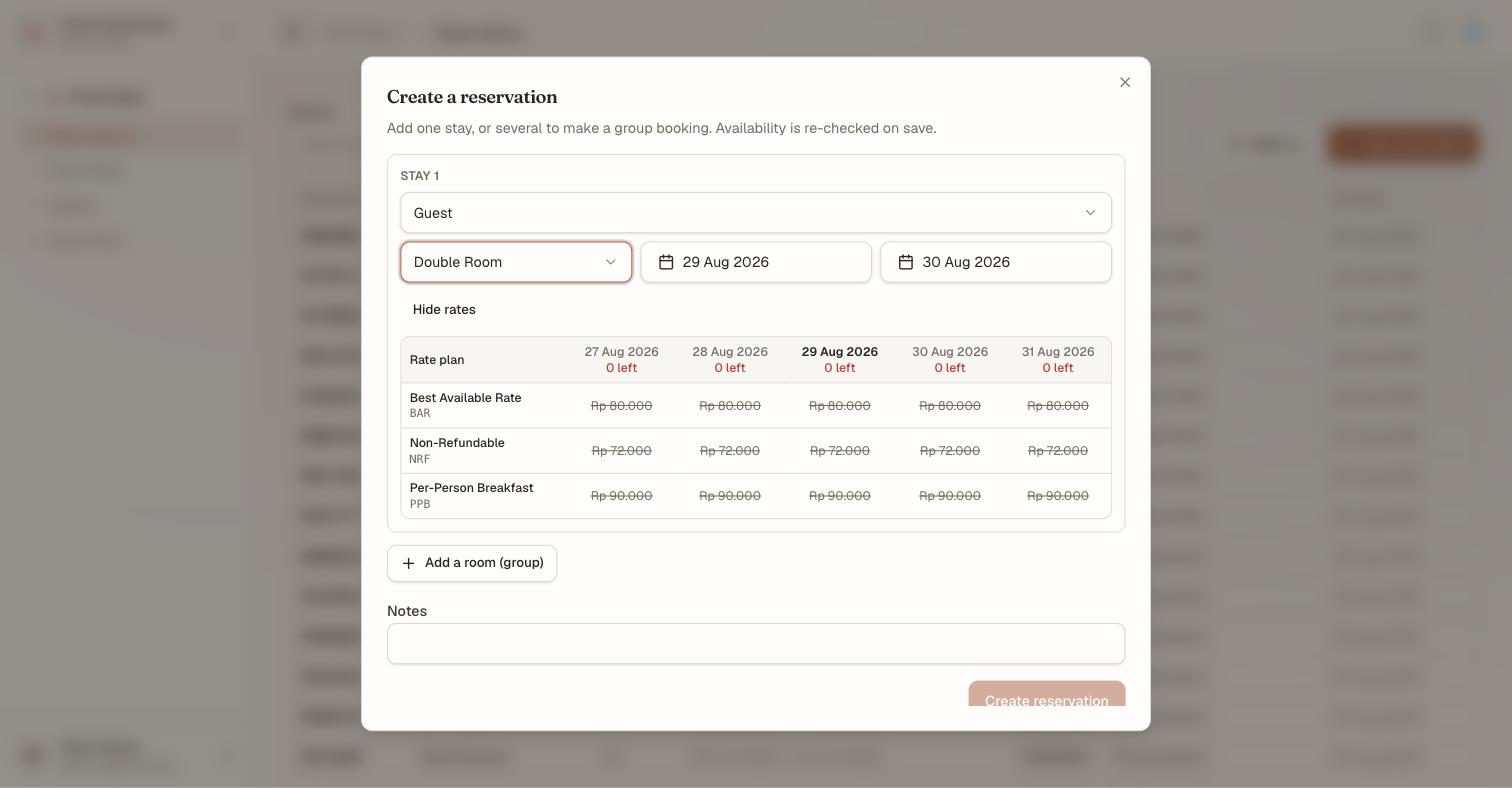
Five nights, three rate plans, and nothing sellable — every price is struck through because the type has no rooms left. A cell you cannot sell is never a cell you can click.
Clicking a price does one of two things, and which one depends on the column:
| Click a cell… | And |
|---|---|
| inside the stay's own dates | The rate plan is selected. The dates do not move. |
| on an adjacent date | The arrival moves to that date and the night count is kept |
That second behaviour is the point of showing the two days either side: picking a cheaper Thursday means shifting the stay, so the grid does it rather than making you re-key the dates.
A date the house has closed cannot be picked. A sold-out date and a stop-sold date look different from each other — a stop-sell says so on hover — because "we have none left" and "we have decided not to sell" are different conversations to have with a guest.
The booking carries whichever rate plan was picked.
Overbook deliberately#
Booking past the last room of a type is a warning, not a wall.
The first attempt is refused and nothing is created. The dialog names the shortfall per night — room type, date, wanted against free, and the deficit — and its primary button changes to Overbook anyway. Press that and the reservation is created like any other; the room type's availability then reads negative demand wherever occupancy is reported.
Two things keep this honest:
- Editing any field clears the warning. Change the dates, the type or the guest and you must confirm again — a confirmation has to be about the booking on screen, not one you have since changed.
- It is audited. One
reservation.overbookedentry lands on the audit log with the actor, the room type, the dates and the deficit. Overbooking is a commercial decision somebody made, and the record says who.
Book a guest who is already at the desk#
Walk-in, beside New reservation, is the other way to create a booking: it takes the guest, the dates and a room, and produces a reservation whose stay is already in-house. Use it when there is nothing to look up. See walk-ins.
Create a group booking#
A group is the same dialog with more rooms in it.
- Start a new reservation and fill in the first stay.
- Select Add a room (group).
- Fill in the next stay — a different guest, category or dates are all fine.
- Repeat for each room, then create the reservation.
The result is one reservation carrying every stay, badged Group on its own page. Availability is checked for the whole block at once, so a group either books entirely or not at all — you never end up with four rooms of the five you promised.
Billing a group through one account is group bookings and master-folio routing.
Work a reservation from its own page#
Select the booking code to open the reservation.
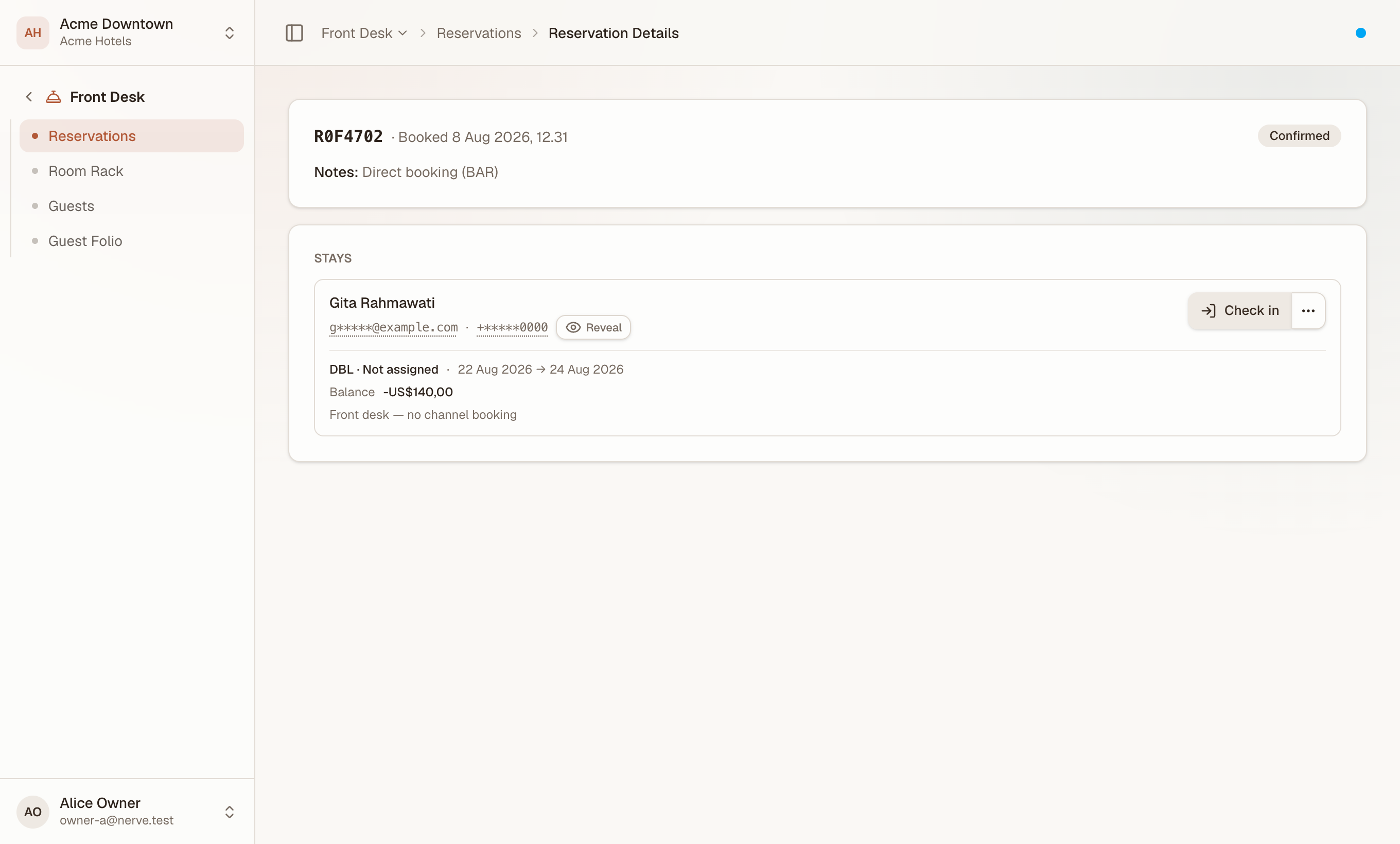
Everything the booking is, and everything you can do to it, on one page.
The header carries the code, when it was booked and any note on the booking. The Stays panel lists each stay with its state and the actions that state allows:
| Stay state | Actions offered |
|---|---|
| Confirmed | Check in, Cancel |
| In-house | Check out |
| Any state | Open guest folio, Guest profile |
The forward action sits in front; everything else is behind the three dots beside it, where Cancel is the only item tinted destructive.
Open guest folio goes straight to the stay's folio with the stay already selected — the quickest route from a booking to its money.
หมายเหตุ
Check in and Check out here are the full guided flows, not bare state changes. Check-in assigns a room if the stay has none, states whether that room is ready, and can take a deposit onto the folio; check-out shows what is owed, takes the final payment and returns a receipt number. See check a guest in and check a guest out.
Record segment, source and purpose#
A card above the Stays panel — Segment, source & purpose — carries four commercial classifications, each a code from its own house-editable reference list:
| Field | Answers | List |
|---|---|---|
| Segment group | The top-level market-segment grouping — Leisure, Corporate, Group, Government | segment_group |
| Market segment | The finer segment underneath it — Negotiated corporate nests under Corporate, for instance | segment_code |
| Booking source | Where the booking came from — walk-in, phone, OTA, corporate portal, travel agent, direct website | booking_source |
| Purpose of stay | Why the guest is staying — business, leisure, MICE, government, medical, education | purpose_of_stay |
All four start Not recorded and stay that way until someone fills them in — the booking form does not gate on them, so record them at any point rather than holding up a create. Anyone with frontdesk.reservation.write can change them; without it the card is read-only, and disappears entirely if nothing has been recorded yet.
Booking source pre-fills itself when the reservation did not come from a person typing it in: a stay a channel pushed in materializes as OTA, and one taken through the booking engine materializes as Direct website. Both are still yours to correct.
หมายเหตุ
These four feed reporting, not availability or pricing — changing them never touches the room, the rate or the folio. The market-segment roll-up on Revenue analytics does not yet read
segment_codedirectly; it still infers a stay's segment from the channel it arrived on, so treat the two as separate views of segmentation until that catches up.
Record the terms the booking was sold on#
Below that sits Booking terms — the commercial promises attached to the booking, as opposed to the rooms and dates it is made of. Fill them in and press Save terms.
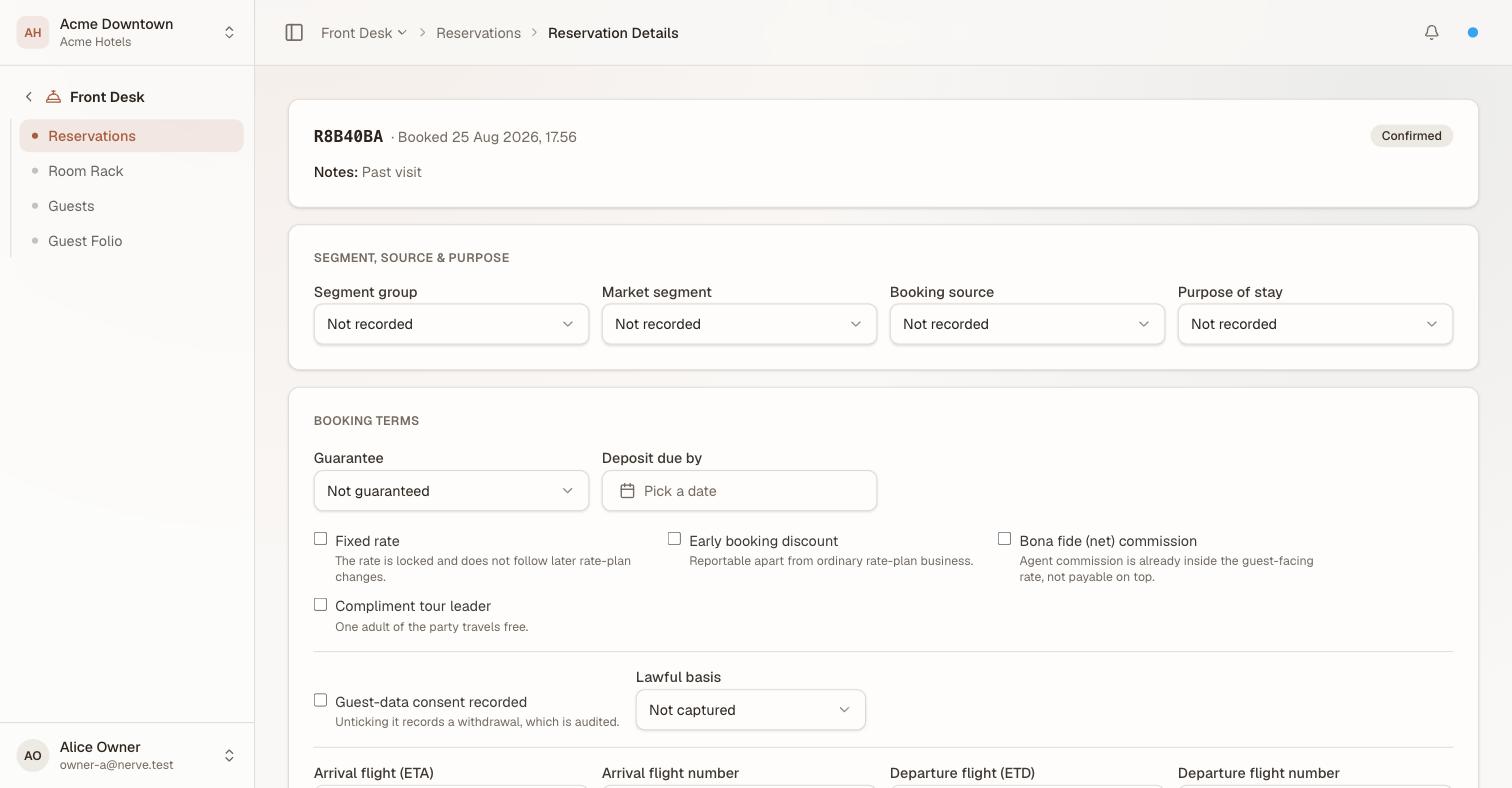
Every control here says what it means underneath itself, because these are the terms somebody will be asked to honour months later.
| Field | What it records |
|---|---|
| Guarantee | Whether the booking is guaranteed. Drives the badge on the list and the guarantee column on Outstanding Folio |
| Deposit due by | An agreed date for the deposit — it becomes the bill's due date, marked as agreed rather than derived |
| Fixed rate | The rate is locked and does not follow later rate-plan changes |
| Early booking discount | Reportable apart from ordinary rate-plan business |
| Bona fide (net) commission | Agent commission is already inside the guest-facing rate, not payable on top |
| Compliment tour leader | One adult of the party travels free |
| Arrival / departure flight | ETA, ETD and flight numbers, for airport pickups and late arrivals |
A group booking additionally offers Group cut-off date and Cut-off days before arrival. A single-room booking does not, because there is no block to release.
เคล็ดลับ
Your house can set Guarantee reservations by default under Hotel Settings. With it on, a new booking that states no guarantee reads Guaranteed without anyone setting it — and a booking that states its own guarantee still overrides the house default.
Guest-data consent#
Guest-data consent recorded is not a free-standing tick. It must be accompanied by a lawful basis naming what the consent authorises — saving it with the basis left at Not captured is refused, because a consent flag that cannot say what it permits is not a lawful basis for anything.
Unticking it records a withdrawal. Both directions land on the audit log as their own events — reservation.consent.granted and reservation.consent.withdrawn — each with the actor and the basis. A withdrawal is an event somebody can be asked to prove, not a value quietly flipping back.
Re-saving the card without touching consent does not move the "consent last changed" timestamp.
Record who is actually staying#
Each stay row carries the party and how it is charged:
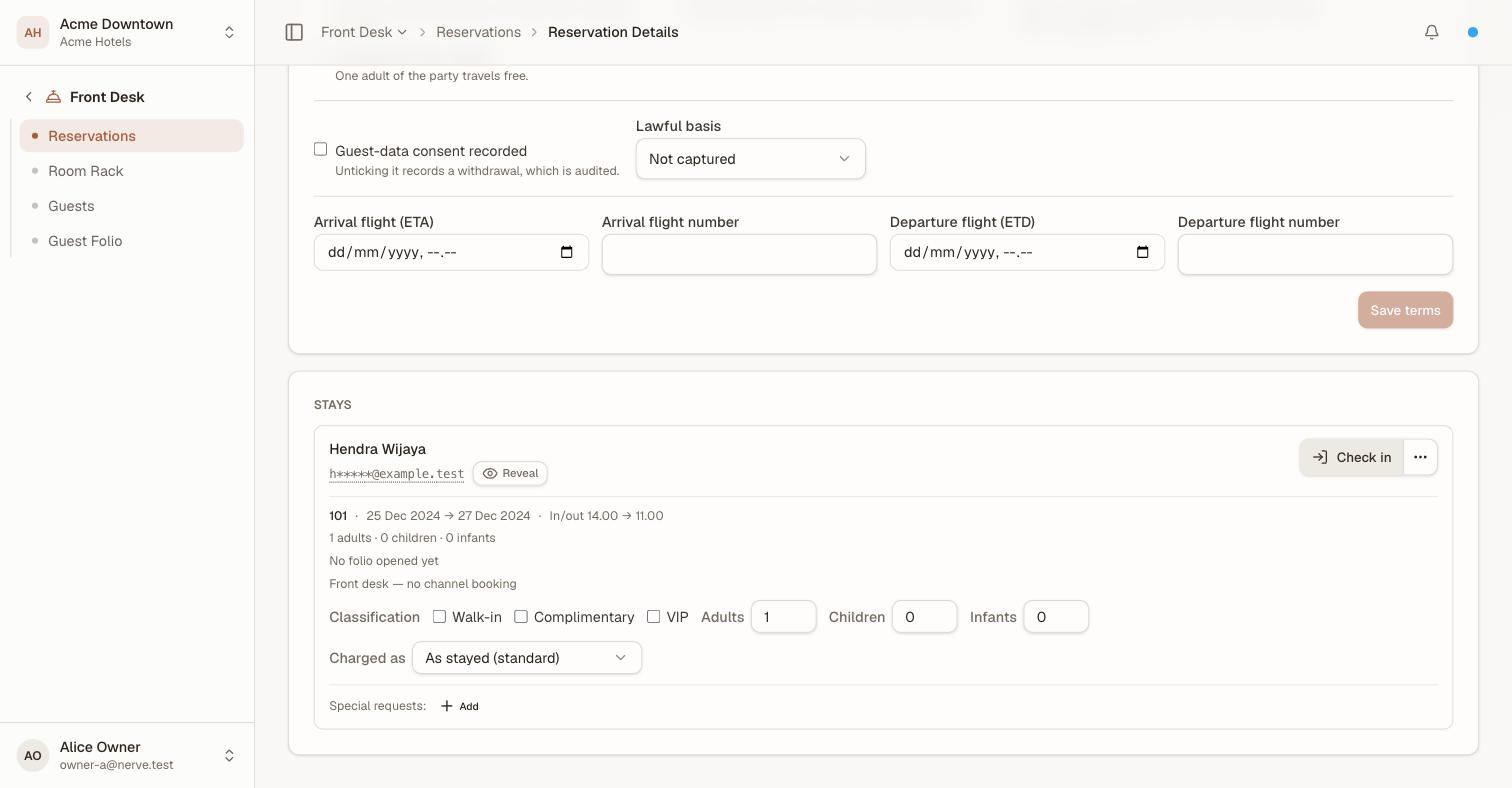
The party and the pricing basis, on the row they belong to. The guest's contact details are masked until somebody chooses to reveal them.
- Adults, Children and Infants are recorded separately, and the stay's facts line reads the party back. Housekeeping and breakfast counts need the split; a single "pax" number cannot give it to them.
- Classification flags the stay as Walk-in, Complimentary or VIP. VIP carries through to the rooming list so the floor knows before the guest arrives.
- Charged as lets the stay price at a different room type from the one it occupies. Set it and the facts line says Charged as <type>, and the room posting on a fresh folio prices at the charged type, not the occupied one. Set it back to As stayed and the divergence line disappears.
That last one is how an upgrade is honoured without lying about where the guest slept: the rack, housekeeping and the rooming list all still say the real room.
Read a stay's state#
Every stay carries exactly one state, and it decides which actions are offered:
| State | Means |
|---|---|
| Confirmed | Booked, not yet arrived |
| In-house | Checked in, occupying the room |
| Departed | Checked out |
| No-show | Did not arrive |
| Cancelled | Called off before arrival |
The moves between them are enforced on the server, so a cancelled stay is never offered a check-in and a departed stay cannot be cancelled after the fact.
Marking a stay no-show does not remove it from the money plane: a no-show bill carrying the forfeited fee appears on Outstanding Folio. Marking the same stay no-show twice does not charge the fee twice.
Change a reservation#
Shift dates, change the category, or swap the guest by editing the stay. Availability is re-checked on save exactly as it is on create, so a change that would overbook the house is refused rather than absorbed — and offers the same deliberate Overbook anyway confirmation described above.
If the stay already has a room, check the rack after a date change — the room stays assigned, and the new dates may collide with the next booking on it.
Standing requests on a stay#
A stay carries its own special requests — high floor, late check-out, a baby cot, an allergy, and the rest of the special_request list — attached and removed from the same card as the room, dates and balance.
- Open the reservation and find the stay.
- Select Add beside Special requests, choose one from the list, and save.
- Remove one with the × on its badge.
A request stays on the stay until someone removes it; there is no fulfilled/declined state to set here yet. What it is for is visibility elsewhere in the house without reopening the booking: the room status board shows a room's open requests on its tile, and Guest Preferences lists every open request in the house at once.
Cancel a stay#
Cancelling asks why — a reason from the cancellation_reason list is required, and the stay stays confirmed until you supply one.
- Open the reservation and find the stay.
- Select Cancel from the actions beside it.
- Choose a Reason — the dialog states plainly that this cannot be undone, and Cancel stays disabled until a reason is picked.
- Confirm.
The stay moves to cancelled and its room is released back into availability for those dates. The record stays in the list; cancelling is a state, not a deletion, so the booking is still there to explain a no-show fee or a repeat guest's history. The reason you picked is stamped on the reservation, shown on its page, and recorded on the audit trail — it is the record of what happened, not a field anyone edits back out afterward.
Any ancillaries sold against the stay are cancelled with it, and their folio charges reversed.
What's next#
- The room rack — give the stay a room
- Check a guest in — the arrival, with its deposit and readiness gate
- Folios: post, split and transfer charges — what the stay is charged
- Outstanding Folio — where guarantee, deposit date and no-show fees are read back
- Guest profiles, history and merging duplicates — who the stay belongs to
- Reference data — rename, reorder or retire any of the segment, source, purpose, cancellation-reason or special-request entries